Add ISP
Internet Service Provider
Click on the ISP TAB in the left panel
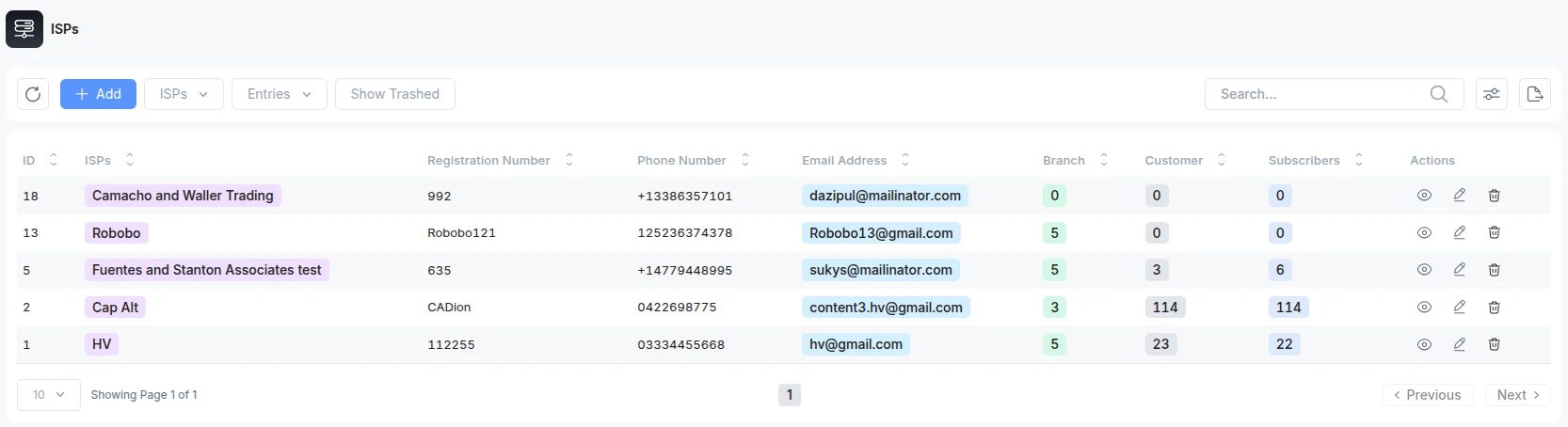
The above interface appears. At this interface, Super Admin can:
-
View the ISPs Dataset and from them, SA can
-
Search
-
Sort
-
Ascending
-
Descending
-
-
Modify View
-
export dataset as PDF, dataset, Excel file, or can have a simple print too
-
Filter
-
-
View the details of the ISP from the dataset by clicking on the EYE button
-
Edit the ISP by clicking on the EDIT button
-
Delete the ISP by clicking the DELETE button and then CONFIRM it.
-
On clicking the button, the system will load the interface below.
Create an ISP
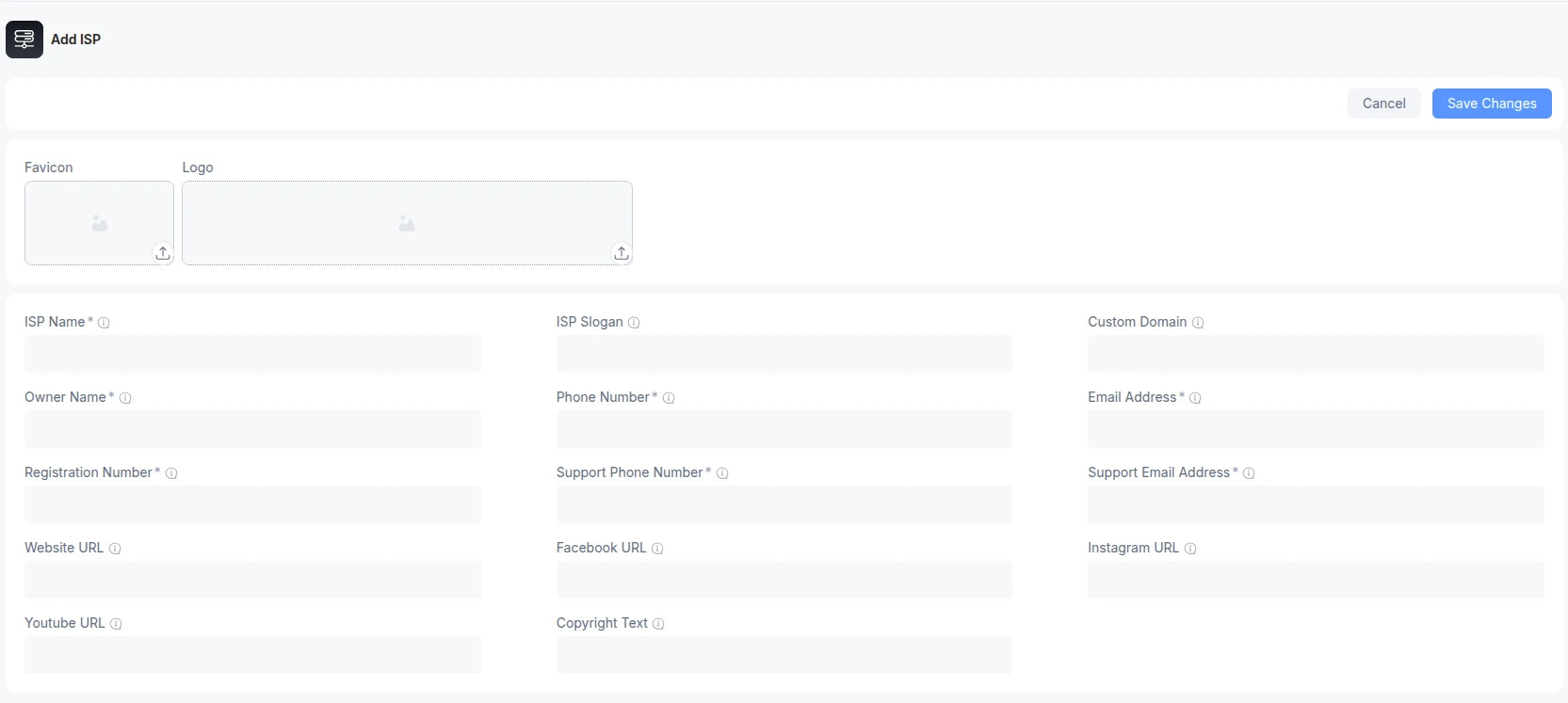
To add an ISP, you need to provide:
-
Favicon: (image) The icon appears in the tab of the browser.
-
Logo: (image) The image appears in the logo at the top of the left Panel in the system.
-
ISP Name: Name of the Internet Service Provider
-
ISP Slogan: The tagline/one-liner about the company. (If available)
-
Customer Domain: the URL used to access the ISP (If available)
-
Owner Name: The name of the person owning the company.
-
Phone Number: The contact number of the person owning the ISP, for later use.
-
Email Address: Email address of the ISP owner for updates.
-
Registration Number: The number of Registered Business Licenses
-
Support Phone Number: The contact number to contact for customer support.
-
Support Email Address: The email address used by the ISP to provide support or receive inquiries.
-
Website URL: The official website address for the business (If available)
-
Facebook URL: The link to the Facebook profile of the business. (If available)
-
Instagram URL: The link to the Instagram account of the business.(If available)
-
YouTube URL: The link to the YOUTUBE channel of the business.(If available)
-
Copyright Text: The text that is copyright of the business, i.e., no one else can use it. (If available)
Click on the SAVE button to create the new ISP with the given details.
Manage Column
ALT Radius offers its users the ability to customize their data grid by utilizing the Manage Columns feature to toggle the visibility of specific data fields. This allows for a streamlined workspace. The most relevant data will appear here for the current operational task.