Sort Customer
Applies to all editions
Beyond the quick-filter chips (see Customer List), the Customer List gives you the full toolkit for finding and organizing subscribers: sort by any column, build precise multi-condition filters, save and share those filters, tailor which columns you see, and run actions on many customers at once. This page covers all of it.
Where to find it: Sidebar → CRM → Customers → Customer List.
Sorting
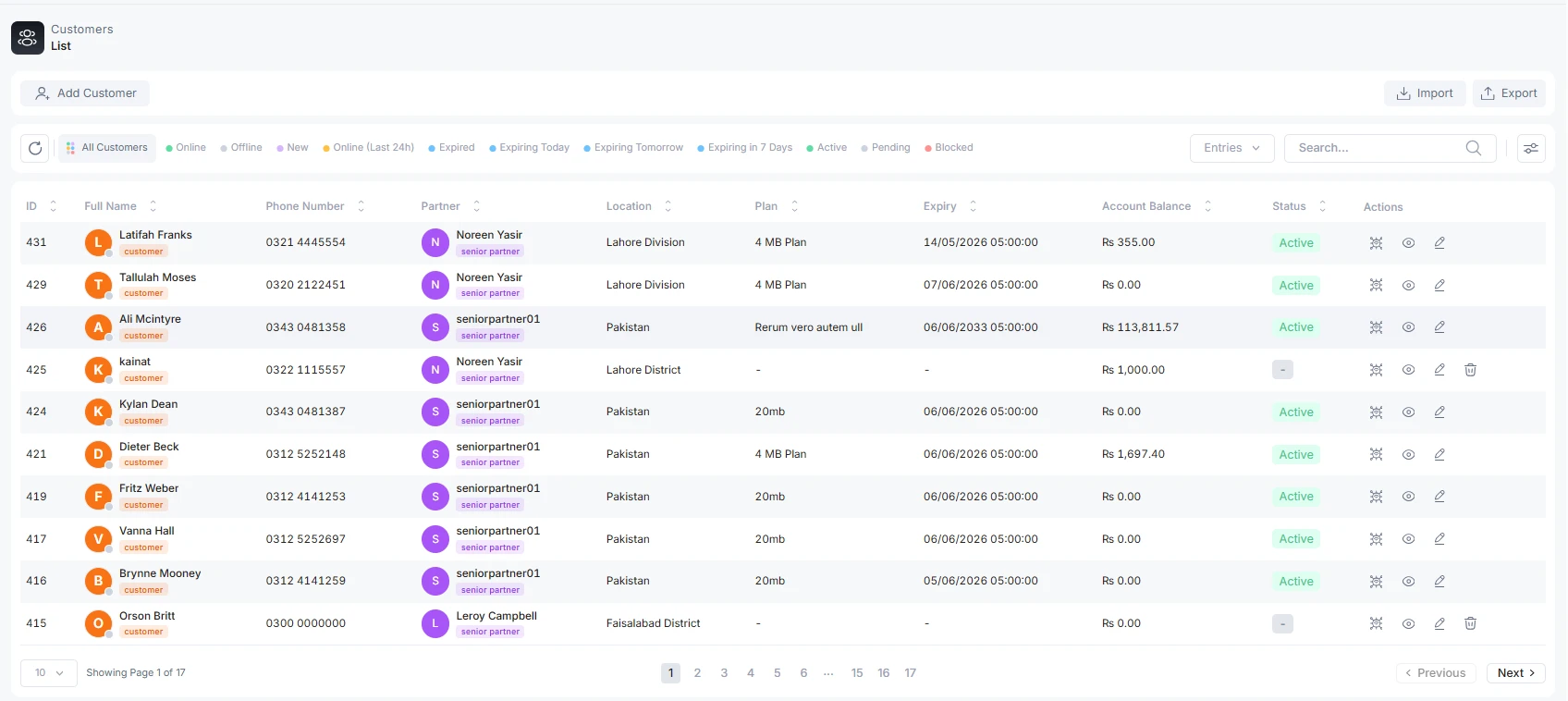
Click any column header to sort the list by that column; click again to flip between ascending and descending. An up/down arrow marks the active sort column. Sorting applies to the columns you can see (ID, Name, Owner, Partner, Phone, Location, Plan, Expiry, Balance, Outstanding, Status). The Actions column can't be sorted.
The advanced filter builder
For anything more precise than the quick chips, open the Filters panel from the right of the toolbar. A badge on the button shows how many conditions are active.
The builder lets you stack conditions with AND / OR logic and group them (you can nest one level deep — a group inside the root). You can have up to 20 conditions in total. Each condition is a field, an operator, and a value.
Fields you can filter on
Fields are organized into groups in the field picker (Most Used, Service & Plan, Ownership & Location, Finance, Customer, Notifications).
| Field | Type | Operators |
|---|---|---|
| Status | Choose | is / is not — Active, Pending, Blocked, Expired, Cancelled, Suspended |
| Plan / Package | Choose (search) | is / is not |
| Expiry Date | Date | is / before / after / between / in the last N days |
| Activation Date | Date | is / before / after / between |
| Skip Auto Renew | Yes/No | is |
| Static IP | Yes/No | is |
| Custom Price | Yes/No | is |
| Has Service | Yes/No | is |
| Owner Type | Choose | is — Branch Direct, Partner Owned |
| Partner | Choose (search) | is / is not |
| Location | Choose (search) | is / is not |
| Category | Choose (search) | is / is not |
| State / Province | Choose (search) | is |
| City | Text | contains / equals |
| Balance | Number | equals / greater / less / ≥ / ≤ / between |
| Outstanding Due | Number | equals / greater / less / ≥ / ≤ / between |
| Name | Text | contains / equals / starts with / is empty / is not empty |
| Text | contains / equals / is empty / is not empty | |
| Phone | Text | contains / equals / is empty / is not empty |
| Identity / CNIC | Text | contains / equals |
| Created Date | Date | is / before / after / between / in the last N days |
| Portal Access | Yes/No | is |
| Email Notifications | Yes/No | is |
| SMS Notifications | Yes/No | is |
| WhatsApp Notifications | Yes/No | is |
| Marketing Opted In | Yes/No | is |
The "choose (search)" fields (Partner, Location, Plan, Category, State/Province) are type-ahead — start typing to load matching options. Some fields are hidden for resellers — for example Partner and Owner Type are not offered to a Partner or Agent, who only ever see their own customers.
Applying and clearing
- Apply Filters turns your conditions into a query, runs it, and jumps to the first page. Applying an advanced filter clears the quick-filter chips so the two don't conflict.
- Clear all removes every condition and returns to the unfiltered list.
- Removing a single condition (its trash icon) re-applies the remaining conditions automatically, or clears the filter entirely if it was the last one.
Saved filters
Once you've built a filter worth keeping, save it and reuse it later.
- Save current filter — from the saved-filters dropdown, name your filter (up to 100 characters) and save it.
- Share with your branch — branch admins get a checkbox to share the filter with the whole branch; shared filters show a Team badge in the list. Resellers always save filters for themselves only.
- Apply — click any saved filter's name to load it.
- Delete — the trash icon next to a filter removes it (owner or branch admin only). Deletion is immediate.
Saved filter names are unique per branch. You see your own filters plus any shared with your branch.
Column preferences
Tailor which columns appear and in what order. Open the columns menu (the icon in the toolbar) to get a searchable list of every column with a visibility toggle.
- Show / hide — toggle any column on or off. (The Actions column can't be hidden.) By default Account Balance and PPPoE Username ship hidden — enable them here if you want them.
- Reorder — drag columns into the order you prefer.
- Save commits your choices; Close discards unsaved changes.
Your layout is saved to your account, per table, so it survives logout and follows you to any device.
Bulk actions
When you tick one or more rows, a bulk action bar appears with grouped action menus. Bulk actions run only on the customers you selected, and always re-check branch scope and permissions on the server — you can never reach a customer outside your visibility.
Selection is current-page only. You can only select rows on the page you're viewing; paging away clears the selection. To act on customers across pages, filter the list down first (or raise the page size) so they're on one page.
The actions
| Action | Group | What it does | Runs as |
|---|---|---|---|
| Enable portal | Portal | Turns on self-service portal access. | Immediate |
| Disable portal | Portal | Turns off portal access. | Immediate |
| Share portal access | Portal | Sends portal credentials; optionally resets to a temporary password. Choose channels (Email / SMS / WhatsApp). | Queued job |
| Block service | Service | Blocks the service. A reason is required. | Queued job |
| Unblock service | Service | Restores a blocked service. | Queued job |
| Turn auto-renew on | Service | Enables auto-renew on the service. | Immediate |
| Turn auto-renew off | Service | Disables auto-renew. | Immediate |
| Renew service | Service | Renews the selected services (funded per the customer's normal renewal rules). | Queued job |
| Send expiry reminder | Messaging | Sends a pre-expiry reminder. Choose channels (Email / SMS / WhatsApp). | Queued job |
| Opt out of expiry reminders | Admin | Stops future expiry reminders for the selected customers. | Immediate |
| Opt in to expiry reminders | Admin | Re-enables expiry reminders. | Immediate |
| Restore selected | Admin | Restores soft-deleted customers (only in the trashed view). | Immediate |
| Export selected | — | Streams the selected customers to a CSV (see Import / Export Customer List). | Immediate download |
Each action requires its own permission, and actions your role doesn't hold simply don't appear in the menus. Some actions only make sense in a particular view — for instance Restore selected appears only when you're looking at the trashed list.
How a bulk action runs
- Preflight. Choosing an action first runs an eligibility check and shows a summary: how many customers are Selected, Eligible, and Skipped, with the reason each row was skipped, and a per-row outcome table. For a renewal it also shows a funding outlook (advisory only — e.g. "likely from wallet"), which informs but never blocks the run.
- Options. Some actions ask for input here — a required reason (Block), a share mode and channels (Share portal access), or channels (Send reminder). If no customers are eligible, the confirm button stays disabled.
- Confirm. Immediate actions apply right away. Queued actions (block, unblock, renew, share, send reminder) create a tracked job.
- Job drawer. For queued actions a progress drawer opens: a live progress bar and Processed / Succeeded / Skipped / Failed counters, polled until the job finishes. Renewal jobs also show a settlement breakdown (how each renewal was funded — e.g. paid from wallet, partner credit) once complete. You can send the job to the background and keep working.
- Report. When a job finishes you can download a per-row CSV report of exactly what happened to each customer.
Troubleshooting / FAQ
- My bulk action only affected some of the customers I picked. The rest were skipped as ineligible — check the preflight summary and the downloaded report for the per-row reason.
- I can't select customers across pages. Selection is per-page by design. Narrow the list with a filter, or increase the page size, so the customers you want land on one page.
- An action is missing from the menu. Your role doesn't have that permission, or the action doesn't apply to the current view (e.g. Restore only shows in the trashed list).
- My saved filter isn't visible to a colleague. Only branch admins can share filters with the branch, and only within the same branch. Resellers' filters are always private.
- The Block action won't confirm. A reason is required for blocking — fill it in.