Network Sites
A network site is a physical place in your network — a Point of Presence (POP), a street cabinet, a tower, an OLT room, or any other location where your equipment lives. Recording your sites gives the rest of the CRM a real geographic backbone: routers, static IP pools, fibre topology, and the outage maps all hang off sites you define here.
Sites are organised as a tree. A big site (a POP) can contain smaller sites (cabinets, towers, OLTs) beneath it, and an IP pool attached to a parent site flows down to every child underneath it. This lets you model "the North POP, and the three cabinets fed from it" the way your network is actually built.
Where to find it: Sidebar → Networking → Network Sites.
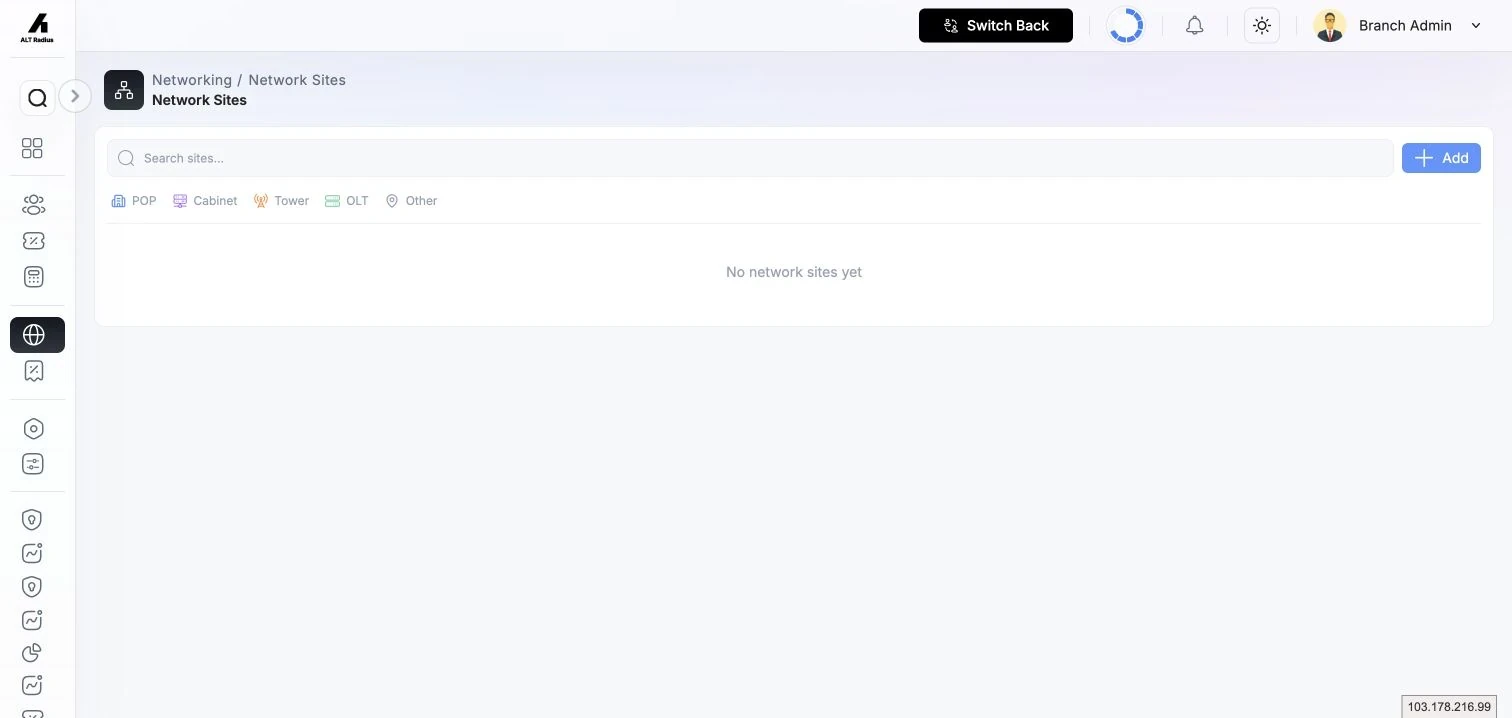
What each site type means
Every site can carry a Site Type, which sets its icon on the map and lets you filter. The types are:
| Site type | Typical use |
|---|---|
| POP | A Point of Presence / core facility where upstream and routing live. |
| Cabinet | A street cabinet or distribution enclosure fed from a larger site. |
| Tower | A wireless / transmission tower. |
| OLT | An OLT room or GPON head-end. |
| Other | Anything that doesn't fit the above. |
Site type is optional — a site with no type is treated as Other on the map.
Add a network site
- On the Network Sites page, click Add.
- Fill in the Details section:
- Name (required) — a descriptive label such as "Downtown POP" or "North Tower".
- Site Type — choose one of the types above, or leave blank.
- Parent site — the larger site this one sits under (for example, the POP a cabinet belongs to). Leave blank for a top-level site. IP pools on the parent flow down to this site.
- Notes — optional free text.
- Active — on by default. When you turn a site off it is kept for reference but is no longer offered when making new selections.
- In the Routers & IP pools section, link the infrastructure that lives at this
site:
- Routers — the routers reachable through this site.
- Networks — the static IPv4 subnets announced or routed at this site.
- Click Save.
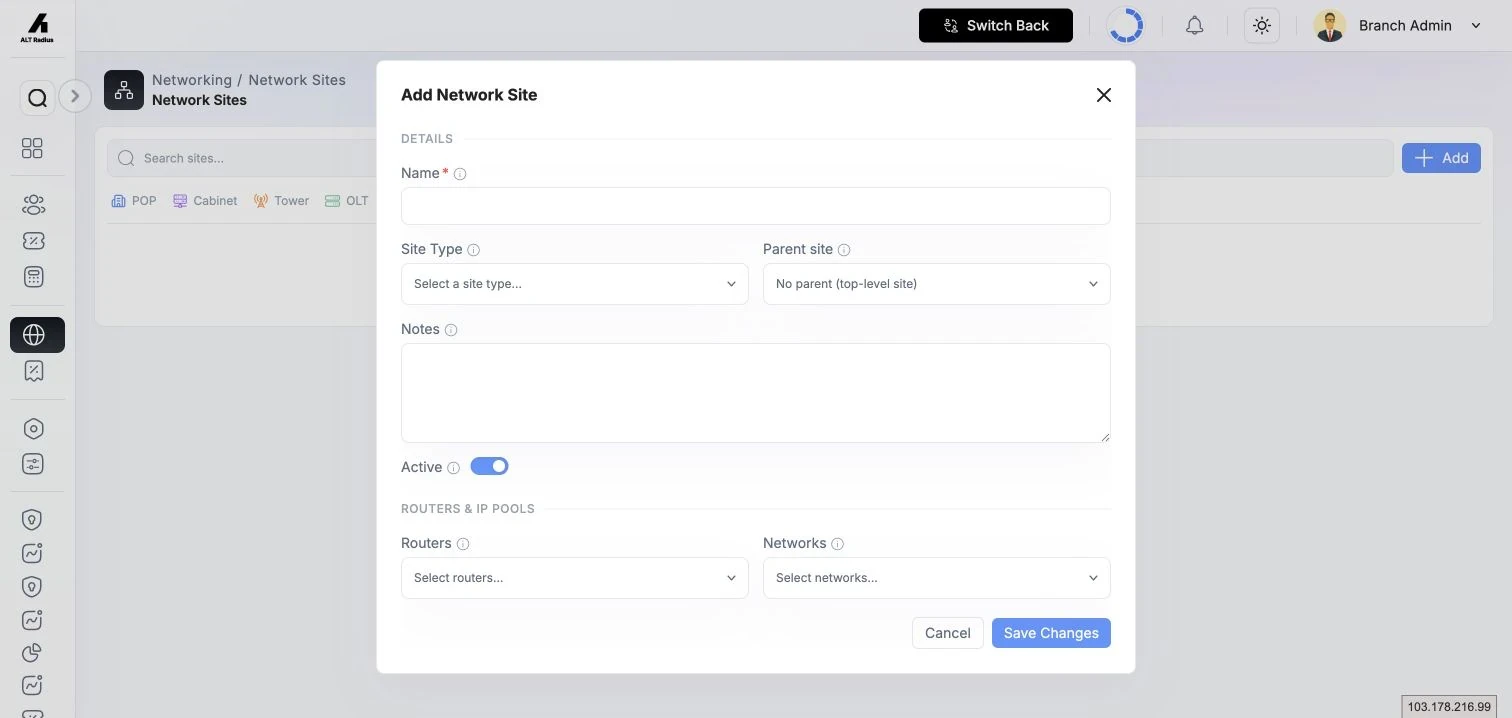
Note on the parent picker: you cannot choose the site itself or any of its own descendants as a parent — that would create a loop. Those options are hidden automatically, and the server rejects a loop even if one is submitted.
Edit a site
Open a site's actions and choose Edit to reopen the same form. All fields can be changed, including moving the site to a different parent or detaching routers and pools.
Place a site on the map
Recording a site's coordinates is what makes it appear on the Customer Map's network- site and outage layers. Location is set separately from the main details so you can pin sites without reopening the whole form.
- Open a site's actions and choose the location option (a site with a pin shows "Location set — click to change"; one without shows "No location — click to set").
- In the Set location dialog you can either:
- Search a place — type an address or place name (at least 3 characters) and press Enter or the search button, then pick a result from the list; or
- Click the map to drop a pin, and drag the pin to fine-tune it.
- The footer shows the chosen coordinates. Click Save location to store them, or Clear location to remove the pin.
Searching uses the built-in geocode assist, the same address lookup the customer map uses. It never exposes your location — the lookup runs through the server.
View a site's IP pools
Open a site's IP pools view to see every static subnet available at that site, split into two groups:
- Attached here — pools linked directly to this site.
- Inherited from parents — pools attached to a site higher up the tree, shown with the parent they came from. These are usable at this site because pools flow downward.
This is a quick way to answer "which subnets can I hand out at this cabinet?" without walking the tree by hand.
How sites connect to the rest of the CRM
- Routers — a router linked to a site is what ties that site to live customer sessions and, in turn, to the online/offline counts on the outage map.
- IPv4 pools — pools attached to a site (and inherited by its children) define the static addresses routed there.
- Fibre topology — network elements, fibre cables, and links (see Network Topology) can start or end at a site, so a site becomes a node in the topology graph and the blast-radius trace.
- Maps — once a site has coordinates it appears on the Customer Map's Network sites and Topology layers, and its customers roll up into the Site outages panel (see Customer Maps).
Delete a site
Open a site's actions and choose Delete.
- If the site is "clean" (no child sites and no directly-attached pools) you get a simple confirmation.
- If the site still has child sites or directly-attached IP pools, deletion is blocked and a list of the blocking items is shown. Move the child sites to another parent and detach the pools first, then delete.
Permissions
- Adding, editing, placing, and deleting sites each require the corresponding network-sites permissions granted to your role. The Admin (branch user) normally holds these; the buttons are hidden if your role lacks the permission.
- Sites are scoped to your branch — you only ever see and manage your own branch's sites.
Troubleshooting
| Symptom | Cause / fix |
|---|---|
| "A network site with this name already exists in this branch." | Site names must be unique within a branch. Choose a different name. |
| A site won't delete. | It still has child sites or attached pools — the dialog lists them. Reparent the children and detach the pools first. |
| A site doesn't show on the map. | It has no coordinates yet. Open its location dialog and set a pin. |
| A parent option is missing from the dropdown. | You can't parent a site to itself or its own descendants; those are hidden to prevent a loop. |