Diagnostics & Tools
Beyond the day-to-day logs, AltRadius includes a set of focused diagnostic and utility screens for investigating authentication problems, cleaning up leftover sessions, watching system health, and identifying devices. This page covers four of them:
- RADIUS Auth Diagnostics , pinpoints why authentication rejects are happening.
- Stale Session Cleanup Logs , the record of sessions the system closed because the router stopped reporting them.
- System Monitoring , an embedded infrastructure dashboard.
- MAC Lookup , identify the manufacturer behind a device's hardware address.
RADIUS Auth Diagnostics
When customers can't connect, the Auth Logs tell you that a request was rejected. RADIUS Auth Diagnostics tells you why , and, crucially, separates the two very different causes of a reject:
- Username case mismatch , a real account exists, but the device sent the username in the
wrong letter case (for example
Johninstead ofjohn). RADIUS matches usernames exactly, so the account is treated as if it doesn't exist and the request is rejected. This is a fixable configuration problem on the device. - True unknown , the username matches no account at all, not even ignoring case. These are typos, closed accounts, or probes , usually nothing to fix.
Telling these apart at a glance saves you from chasing "unknown user" rejects that are really just a capital letter in the wrong place.
Where to find it: Sidebar → Diagnostics → RADIUS Auth Diagnostics. Anyone who can view Auth Logs can view this page.
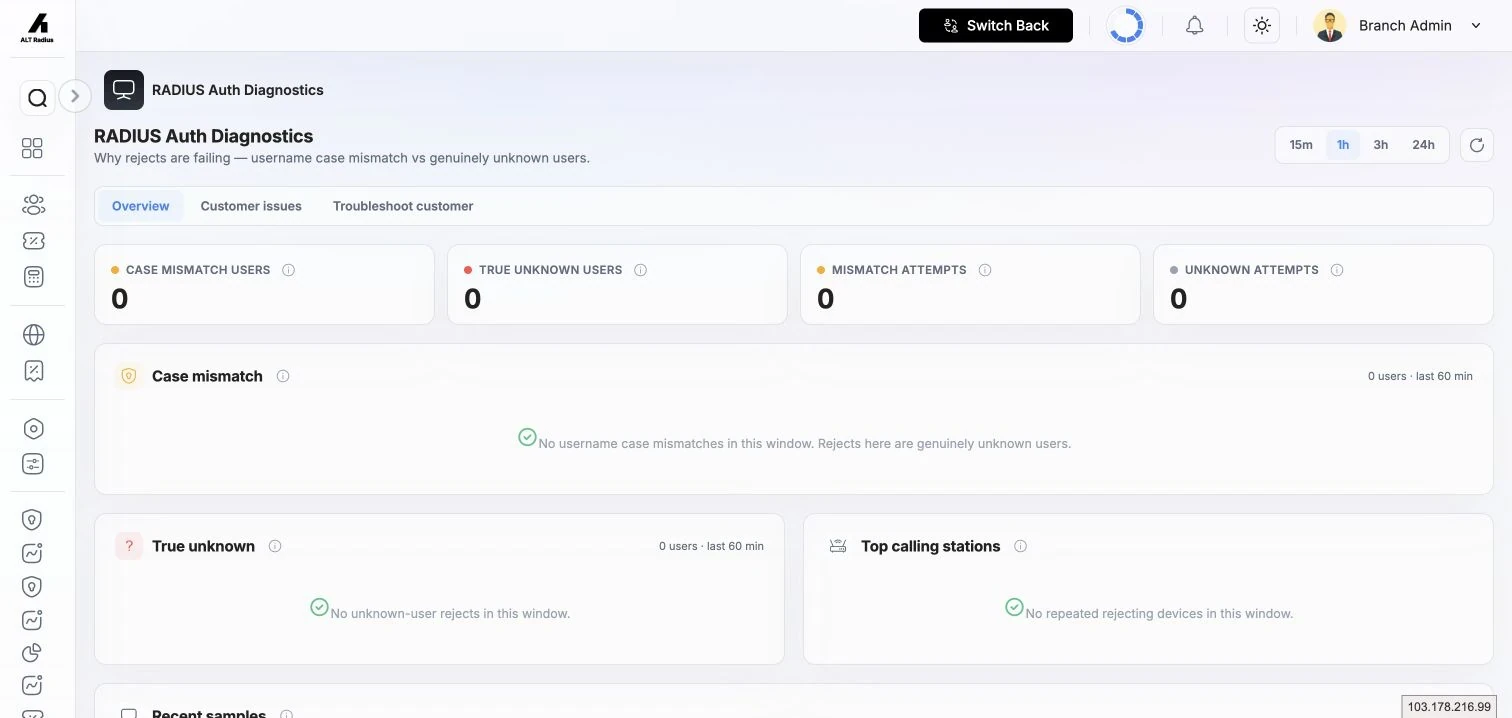
Choosing a window
A toolbar lets you pick how far back to look , 15m, 1h (the default), 3h, or 24h , plus a Refresh button to re-run without changing the window. Everything on the page is scoped to the window you pick. (Branch admins see the whole branch; partners see only their own customers.)
The four summary tiles
| Tile | What it counts |
|---|---|
| Case mismatch users | Distinct usernames rejected only because of wrong letter case. |
| True unknown users | Distinct usernames that match no account at all. |
| Mismatch attempts | Total reject attempts from case-mismatch usernames in the window. |
| Unknown attempts | Total reject attempts from genuinely unknown usernames in the window. |
The detail sections
- Case mismatch , the fixable rejects. Each row shows what the device Received (sent) next to the Stored account it should have matched, plus attempts, last seen, router, and device (MAC). Expand a row for a plain-language explanation of the mismatch and the recommended fix: correct the username on the device to match the stored value, or standardise the stored username's case. Row actions let you jump to that user's auth logs, open the customer, or copy the explanation.
- True unknown , usernames that match nothing. Same columns minus the "stored" comparison. Typically typos, old accounts, or scanning attempts.
- Top calling stations , the devices (by MAC address) generating the most rejects across both buckets, with how many distinct usernames each has tried. A single device trying many usernames can indicate a misconfigured router or a probe.
- Recent samples , the most recent raw reject rows in the window, each tagged Case mismatch or Unknown, with the router, device, time, and the server's reply message.
How to use it
- If Case mismatch is non-zero, those are quick wins , fix the username case on each device (or standardise the stored username) and the customer connects.
- Treat True unknown as noise unless a specific customer is affected; a spike can indicate a probe or a broken provisioning step.
- Use Top calling stations to spot one device causing many rejects.
Stale Session Cleanup Logs
A session is "stale" when AltRadius still shows a customer as connected but the router has stopped sending accounting updates for that session , usually because the router went offline, lost its link, or missed the session's closing message. Left alone, a stale session makes a customer look online when they aren't, and can block a clean reconnect. AltRadius periodically reconciles these: it closes the sessions the router is no longer reporting and records what it did here.
Where to find it: Sidebar → Logs → Stale Session Logs.
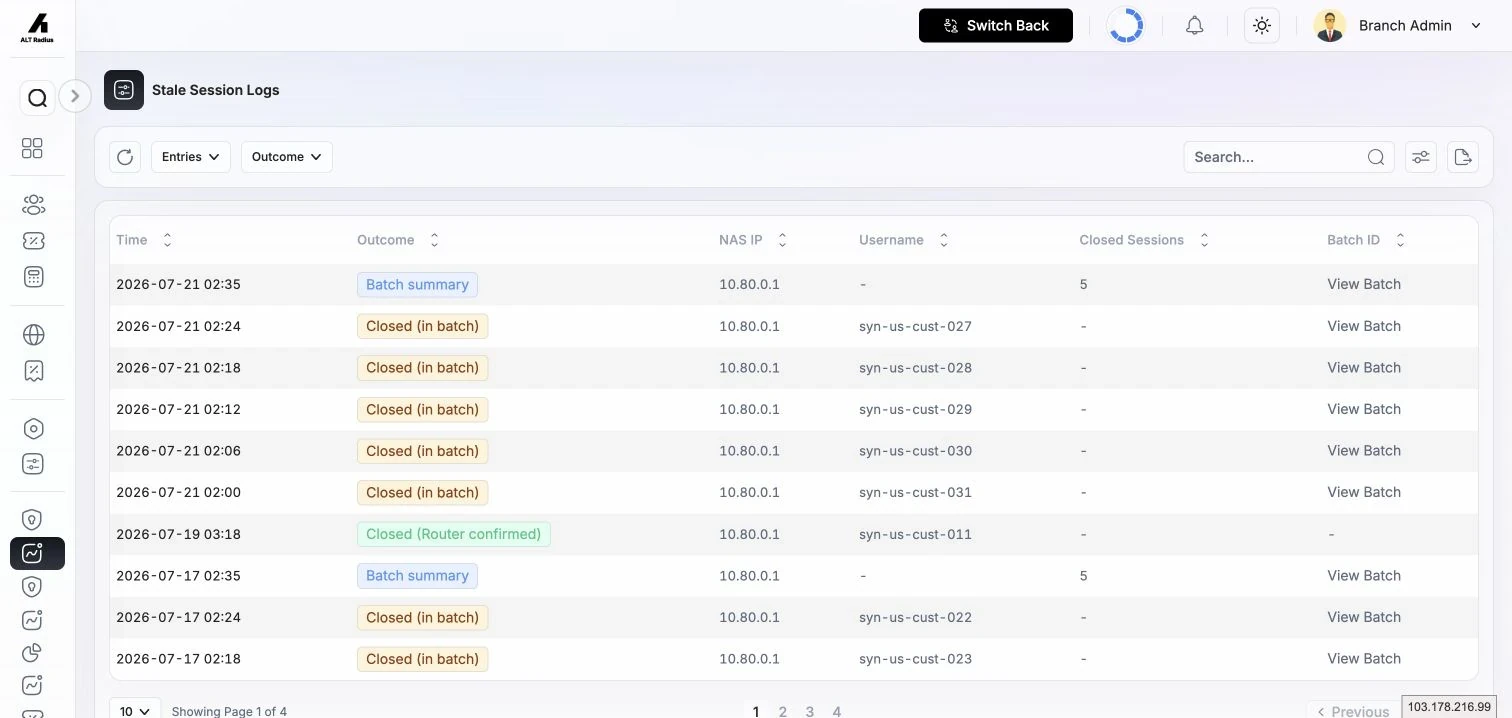
What each column shows
| Column | What it shows |
|---|---|
| Time | When the cleanup record was created. |
| Outcome | What kind of cleanup this was (see below). |
| NAS IP | The router the sessions belonged to. |
| Username | The customer whose session was closed. |
| Closed Sessions | How many sessions were closed in this record. |
| Batch ID | The cleanup run this record belongs to , open it to see the batch detail. |
Outcomes
| Outcome | Meaning |
|---|---|
| Closed (in batch) | This session was closed as part of a cleanup run. |
| Batch summary | A roll-up row for a whole cleanup run. |
| Closed (Router confirmed) | The router later confirmed the session was indeed ended, so the closure is verified. |
Filters
- Entries per page , 10, 25, 50, 100.
- Outcome , filter to a single outcome type.
Batch detail
Clicking a Batch ID opens the run's detail: a summary (batch ID, time, router, how many sessions were closed, and the inactivity interval used to decide staleness) plus the list of individual sessions closed in that run, each with its username, accounting session ID, and last recorded activity time.
Partners see only their own customers' closed-session rows; the cross-customer batch summary is hidden from them and shows a "not available in your scope" note instead.
System Monitoring
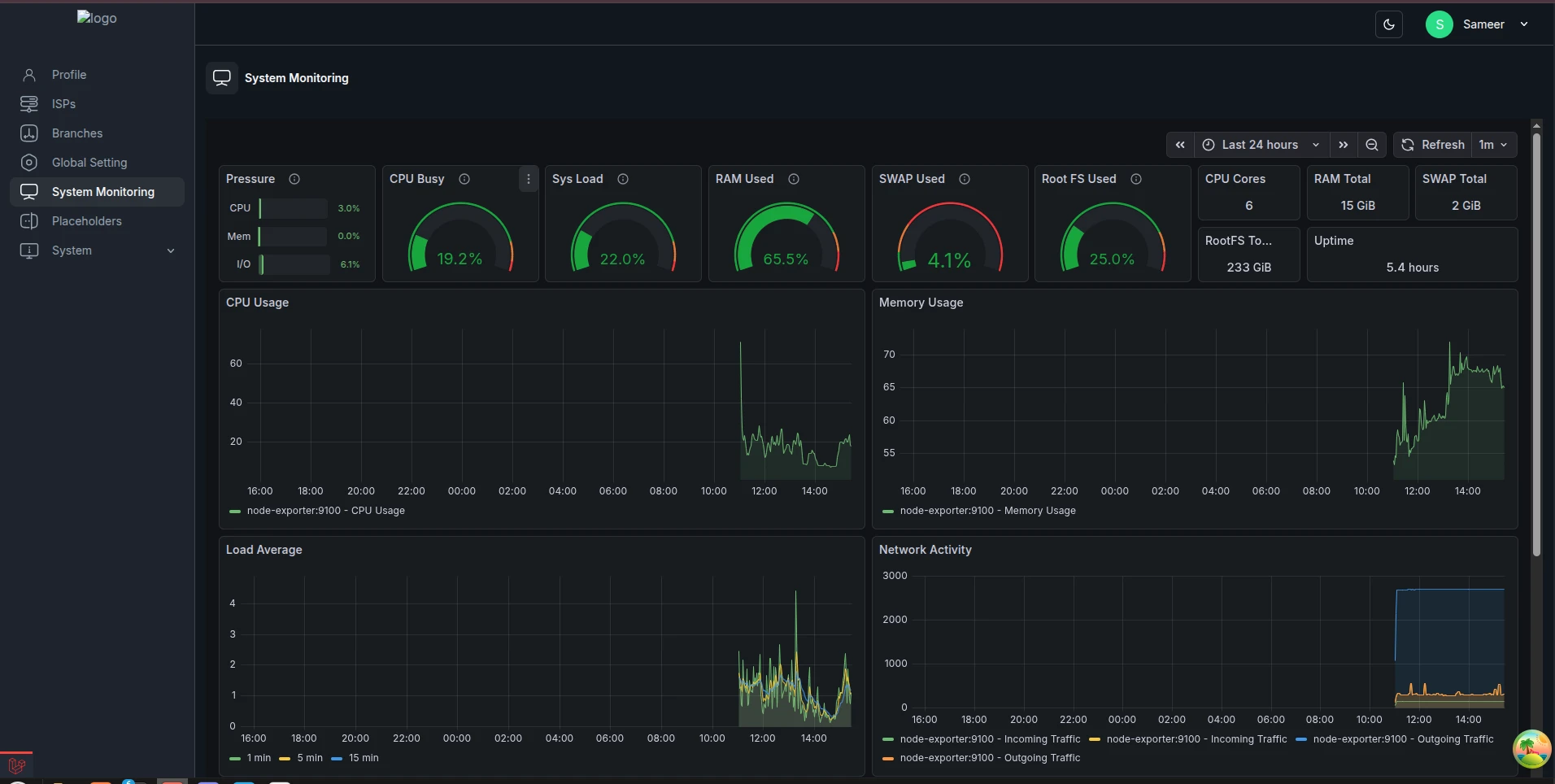
System Monitoring embeds an infrastructure health dashboard (CPU, memory, traffic, and similar metrics) directly inside AltRadius, so operators can watch server health without leaving the CRM. The dashboard follows your light/dark theme automatically.
Availability. System Monitoring appears in the Super Admin navigation when the installation and the signed-in role allow it. Its metrics come from the monitoring dashboard configured for that installation, so the available panels can differ between deployments.
MAC Lookup
Every network device has a hardware (MAC) address whose first portion identifies the manufacturer. MAC Lookup turns those addresses into human-readable manufacturer information using the official IEEE registry, so you can tell what kind of device is behind a connection. Device addresses in the Auth Logs and Usage Logs link straight here.
Where to find it: Sidebar → Tools → MAC Lookup.
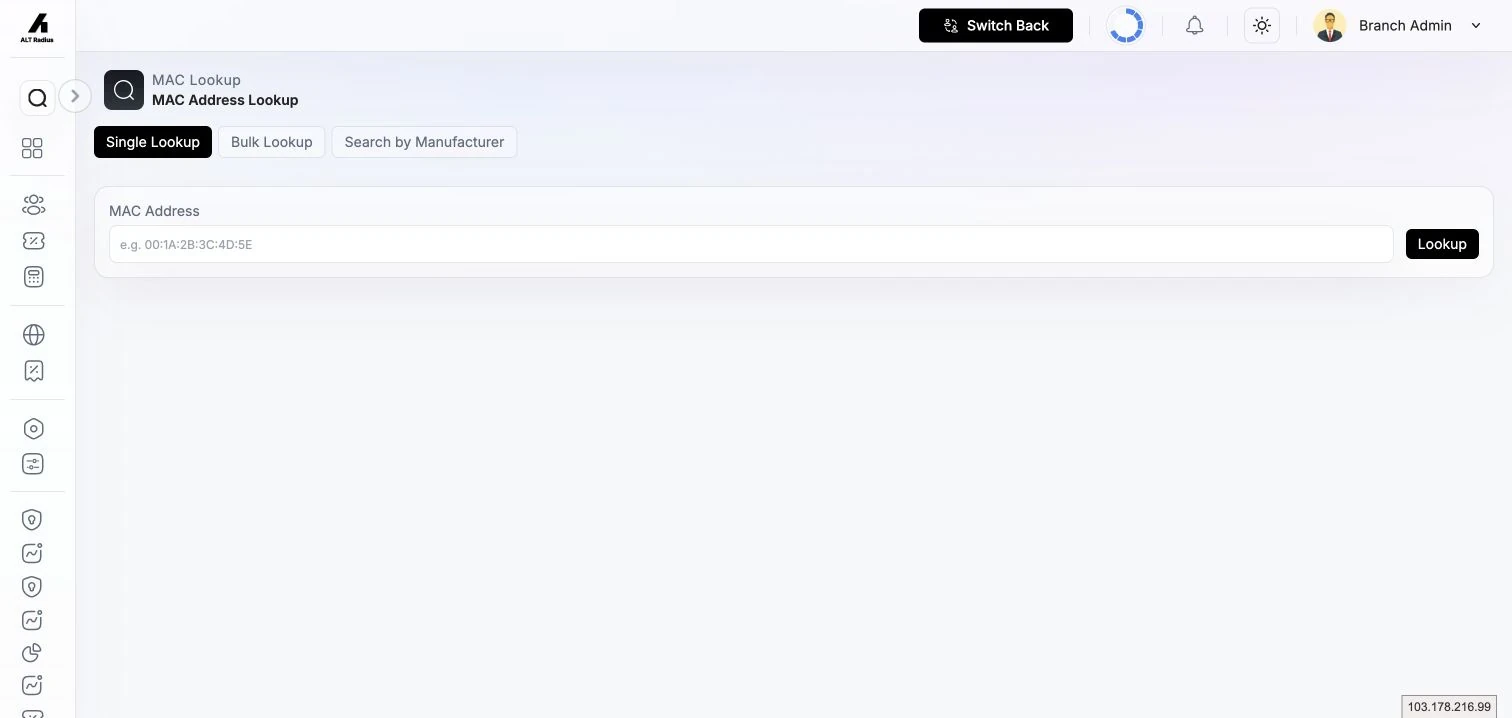
The page has three tabs.
Single Lookup
Enter one MAC address (for example 00:1A:2B:3C:4D:5E) and click Lookup. The result card shows
the Manufacturer, a Status badge (see below), the matched OUI Prefix, the Assignment
Type, the Country, and the registered Address.
Bulk Lookup
Paste up to 50 addresses, one per line, and click Lookup All to get a results table with the manufacturer, OUI prefix, assignment type, and status for each. Clear empties the box.
Search by Manufacturer
Type a manufacturer name (at least two characters , for example Huawei, Cisco, TP-Link) and
click Search to list the OUI prefixes registered to that company, with assignment type and
country. Results are paginated.
What each status means
| Status | Meaning |
|---|---|
| Verified | Found in the IEEE registry , a real, factory-assigned manufacturer address. |
| Private Registry | The manufacturer chose to keep its registry entry private. |
| Locally Admin. | A locally administered (randomised/software-assigned) address, not a factory one , manufacturer lookup doesn't apply. Common with modern devices that randomise their MAC for privacy. |
| Multicast | A multicast/broadcast address, not a single device identifier. |
| Not Found | The prefix isn't in the registry. |
| Invalid | The value isn't a valid MAC address. |
Keeping the registry current
The lookup runs against a local copy of the IEEE database. Where your role permits, a Sync Now action refreshes that copy in the background; only one sync runs at a time.
Troubleshooting / FAQ
- A customer's address shows "Locally Admin." instead of a manufacturer. The device is using a randomised (privacy) MAC, so there is no manufacturer to look up. This is normal for many phones and laptops.
- A known device shows "Not Found." The registry copy may be out of date , run Sync Now (if your role allows) and try again.