Support Settings
These settings control how the branch receives, assigns, tracks, and answers support tickets. Set ticket types, statuses, priorities, business hours, and SLA policies before your team relies on automated routing and deadlines.
Where to find it: Sidebar → Config → Support and Ticket System.
Support and Ticket System
The Support section defines the vocabulary and rules of your help desk. Statuses and priorities drive the ticket lifecycle; SLA policies set the clocks; channels bring tickets in; canned replies and bot flows speed up answering. The order below matches the sidebar.
Support Module
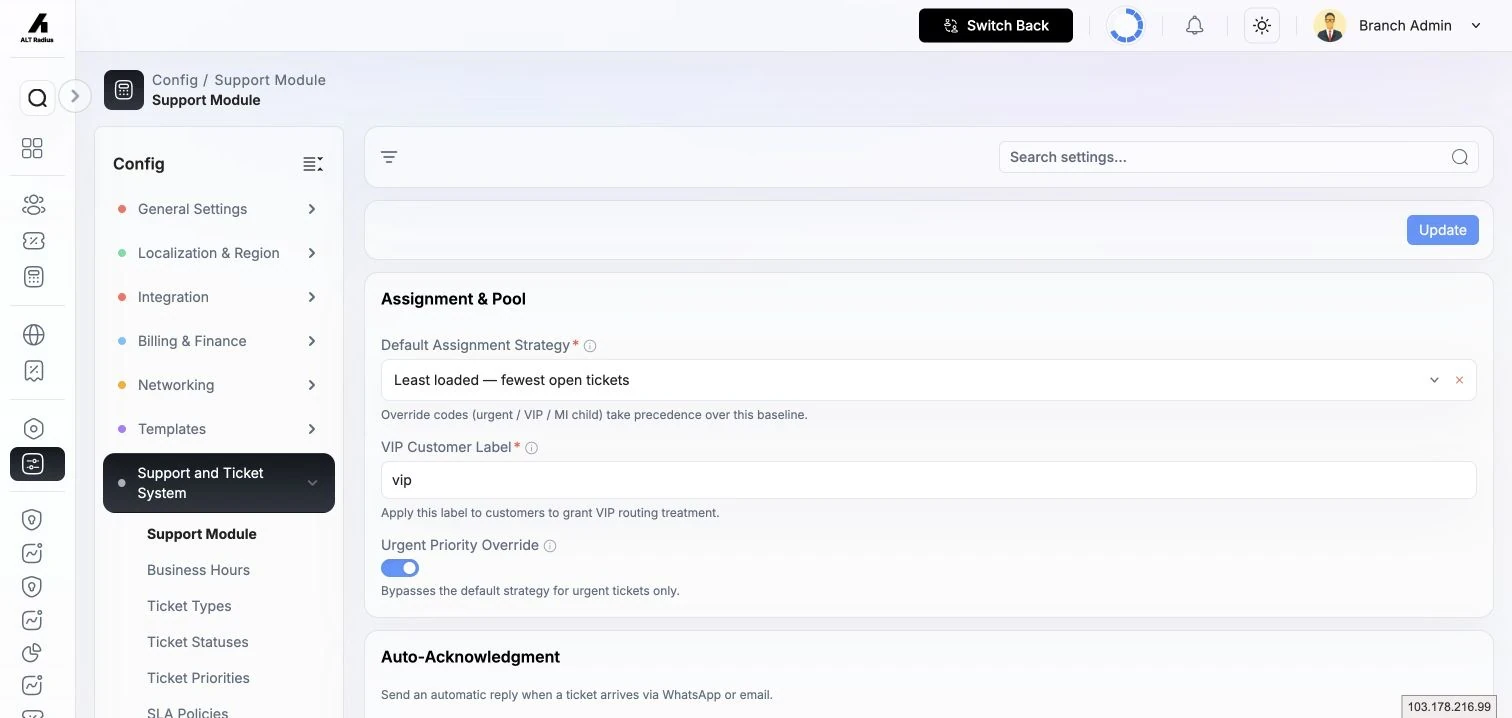
The Support Module page holds the branch-wide support behaviour: how new tickets are assigned, auto-acknowledgement, major-incident clustering, SLA pause statuses, ticket lifecycle timers, and CSAT. These are branch settings; see the Branch Settings documentation for the full field-by-field reference. Key groups on this page:
- Assignment — default assignment strategy, VIP customer label, urgent-priority override.
- Auto-acknowledgement — send an automatic reply when a ticket arrives by email or WhatsApp.
- Major incidents — child-reply mode and the clustering thresholds/windows that group related outages.
- SLA pause statuses — the statuses that pause SLA timers while a ticket sits with them.
- Lifecycle — auto-close resolved tickets after N hours, and the customer reopen window.
- CSAT — how long a satisfaction-survey link stays valid.
Where to find it: Sidebar → Config → Support and Ticket System → Support Module.
Business Hours
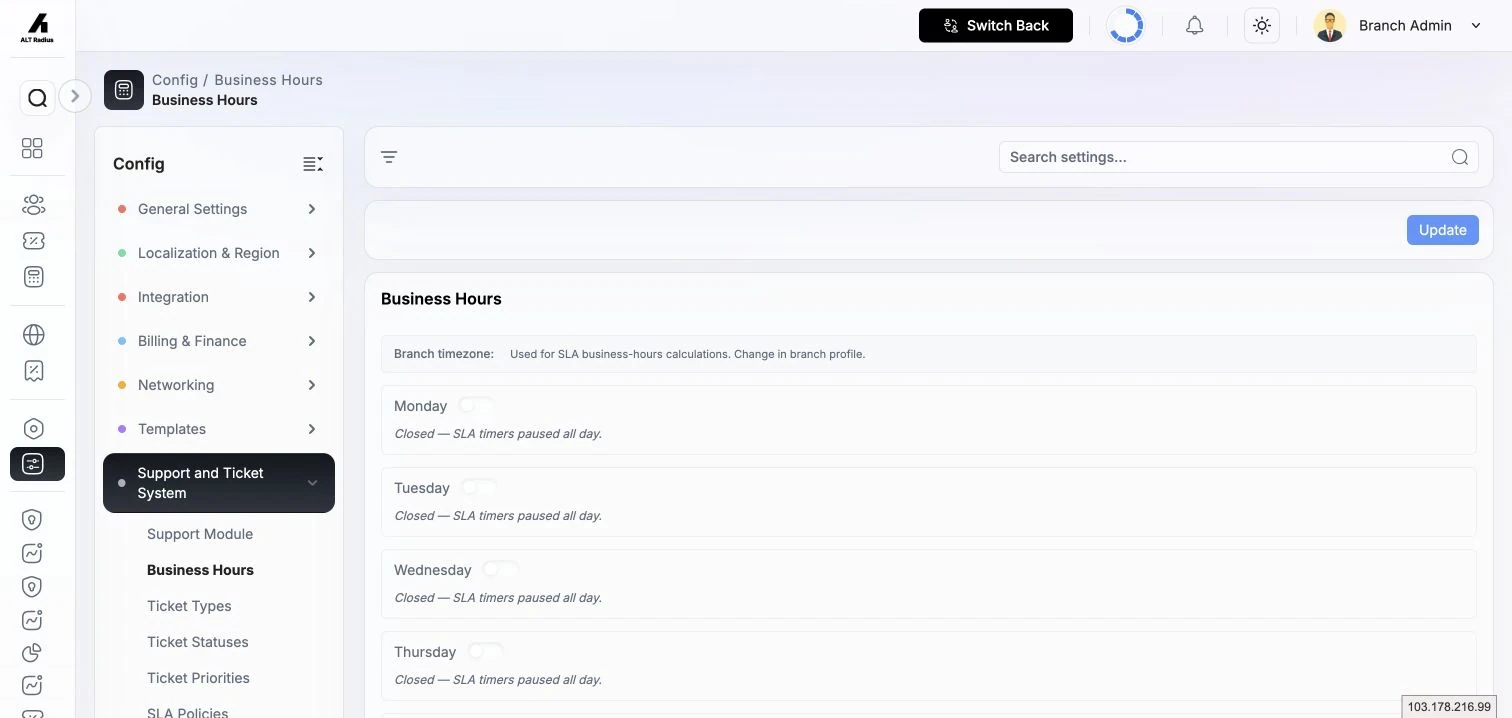
Business Hours defines your support working windows per day, with support for split shifts (more than one open/close range in a day, or a day marked closed all day). SLA policies that honour business hours pause their timers outside these windows.
Where to find it: Sidebar → Config → Support and Ticket System → Business Hours.
Set a timezone, then for each day either mark it closed or add one or more open/close ranges. A day marked closed pauses SLA timers all day.
Ticket Types
Ticket types categorise incoming tickets (for example Complaint, Sales, Fault). A type can name a default department so tickets of that type route automatically.
Where to find it: Sidebar → Config → Support and Ticket System → Ticket Types.
| Field | What it does | Notes |
|---|---|---|
| Name | The type's display name. | Supports a translation per language. |
| Department | The default department tickets of this type route to. | Optional — leave blank to require the agent to choose a department on each ticket; overridden when an agent picks a different one. |
Ticket Statuses
Statuses define the stages a ticket moves through. Beyond a name and a badge colour, each status carries lifecycle flags that tell the CRM what the status means — whether the ticket is still active, resolved, closed, or being reopened.
Where to find it: Sidebar → Config → Support and Ticket System → Ticket Statuses.
| Field | What it does | Notes |
|---|---|---|
| Name | The status display name. | Supports a translation per language. |
| Code | A short slug for the status. | Auto-generated from the name if left blank. |
| Badge colour | The colour of the status badge. |
Lifecycle flags — set these to tell the system how the status behaves:
| Flag | What turning it on means |
|---|---|
| Open | The ticket is still active and counts as "open". |
| Resolved | The ticket is marked resolved (records a resolved timestamp). |
| Closed | The ticket is terminal/closed (records a closed timestamp). Cannot be combined with Open. |
| Reopened | Moving into this status counts as a reopen. |
A status cannot be both Open and Closed at the same time — the form rejects that combination.
Ticket Priorities
Priorities set the urgency levels tickets can carry, each with its own badge colour. Priorities also tie into SLA: a policy whose name matches a priority (Urgent, High, Medium, Low) applies to tickets of that priority automatically.
Where to find it: Sidebar → Config → Support and Ticket System → Ticket Priorities.
| Field | What it does | Notes |
|---|---|---|
| Name | The priority display name. | Supports a translation per language. |
| Badge colour | The colour of the priority badge. |
SLA Policies
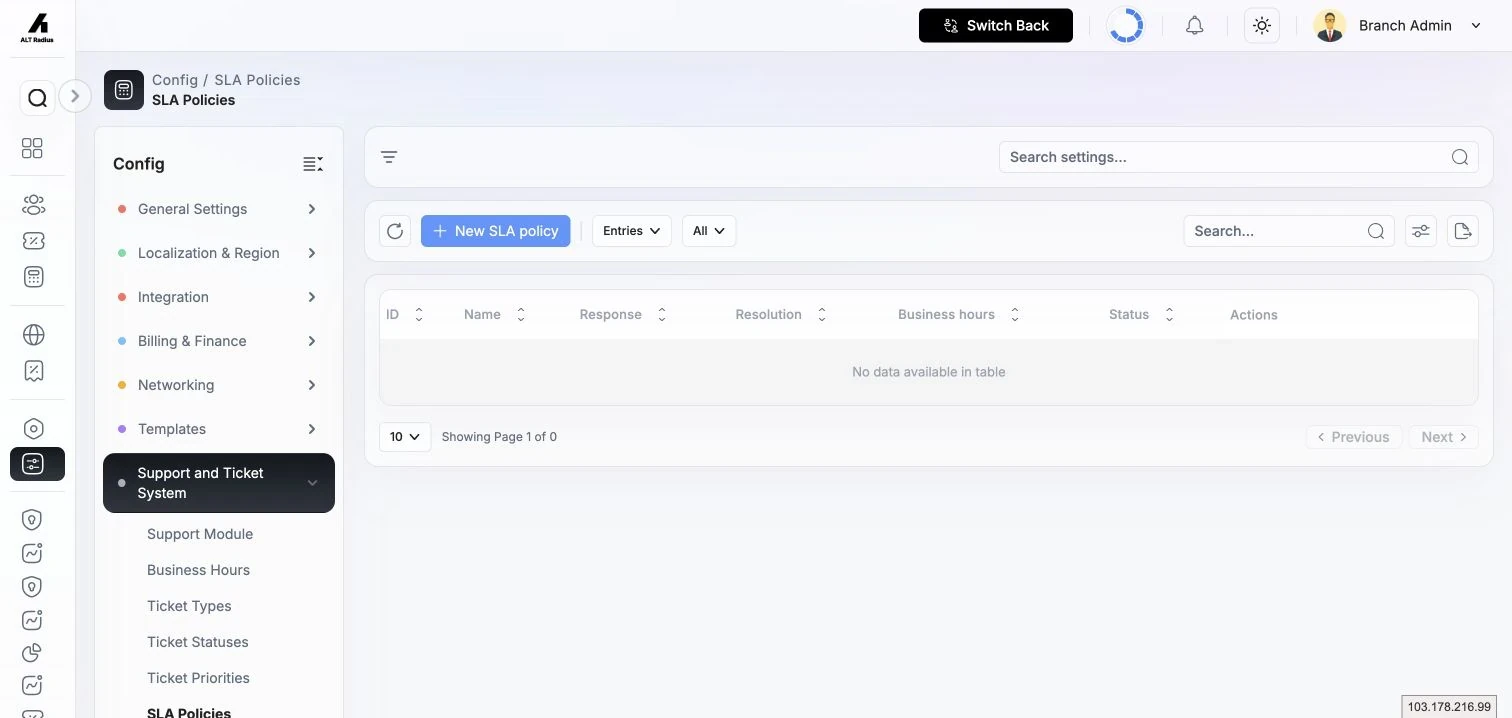
An SLA policy sets a response deadline (time to first agent reply) and a resolution deadline (time to reach a Resolved status) for tickets of a given priority. Policies apply automatically by priority match and can be set to honour business hours.
Where to find it: Sidebar → Config → Support and Ticket System → SLA Policies.
| Field | What it does | Notes |
|---|---|---|
| Name | A short descriptive label. | When the name matches a priority (Urgent / High / Medium / Low), tickets of that priority get this policy automatically. |
| Priority match | The priority that receives this policy by default. | |
| Response time | Time within which the first agent reply must be sent. | A value plus a unit (minutes / hours / days). |
| Resolution time | Time within which the ticket must reach Resolved. | A value plus a unit. |
| Honor business hours | Pause SLA timers outside your configured business windows. | Configure the windows on the Business Hours page. |
| Timezone | The timezone used for business-hours calculation. | |
| Active | Whether the policy is in effect. |
Changing a policy's priority match recomputes SLA timers on the tickets currently using it. Tickets already breached stay breached.
Channels
Channels are the inbound routes that create tickets — email, portal, internal, and WhatsApp (Watilio). Configure each channel's connection here.
Where to find it: Sidebar → Config → Support and Ticket System → Channels.
| Column | What it does |
|---|---|
| Name | The channel's name. |
| Adapter | The channel type (email, WhatsApp, portal, internal). |
| Webhook URL | The inbound webhook address, where applicable. |
| Unknown sender | How to handle messages from senders not matched to a customer. |
| Status | Whether the channel is active. |
For an email channel you provide the mailbox connection (IMAP for receiving, SMTP for sending); for a WhatsApp channel you provide the Watilio credentials. Email channels have a Test connection action to confirm the mailbox settings before going live.
Canned Replies
Canned replies are reusable response templates agents can drop into a ticket reply, each with an optional short code for quick insertion. Active replies appear in the agent reply composer; inactive ones are hidden from the picker but stay editable here.
Where to find it: Sidebar → Config → Support and Ticket System → Canned Replies.
| Column | What it does |
|---|---|
| Title | The reply's name. |
| Short code | A shortcut used to insert the reply. |
| Template | The reply body. |
| Status | Active (shown in the composer) or inactive. |
Bot Flows
Bot Flows are automation flows for handling incoming tickets — a visual builder of nodes that can be drafted, published, activated, deactivated, duplicated, or unpublished.
Where to find it: Sidebar → Config → Support and Ticket System → Bot Flows.
A note on departments
Ticket routing uses the departments and teams configured for the branch. New branches start with four standard departments: Technical Support, Billing, Field Operations, and Sales. These are defaults, not a closed list. You can add or edit departments under Config → General Setting → Departments, and ticket assignment resolves the selected department's code and team.
Troubleshooting
- A ticket status will not save. A status cannot be both Open and Closed. Turn off one of those flags.
- An SLA policy does not apply. Check its priority match, name, and Active state.
- SLA timers continue overnight. Enable Honor business hours, set the Business Hours windows, and check SLA pause statuses on the Support Module page.
- A canned reply is missing from the composer. Only Active replies appear in the picker.