Router Detail Overview
Applies to all editions
The router information page is the single-device view for one NAS. It gathers everything you need to understand and manage a router in one place: its configuration details, its live traffic and customer-usage charts, and a running log of who changed what.
Where to find it: Sidebar → Networking → Routers → Preview (the eye icon) on a router row.
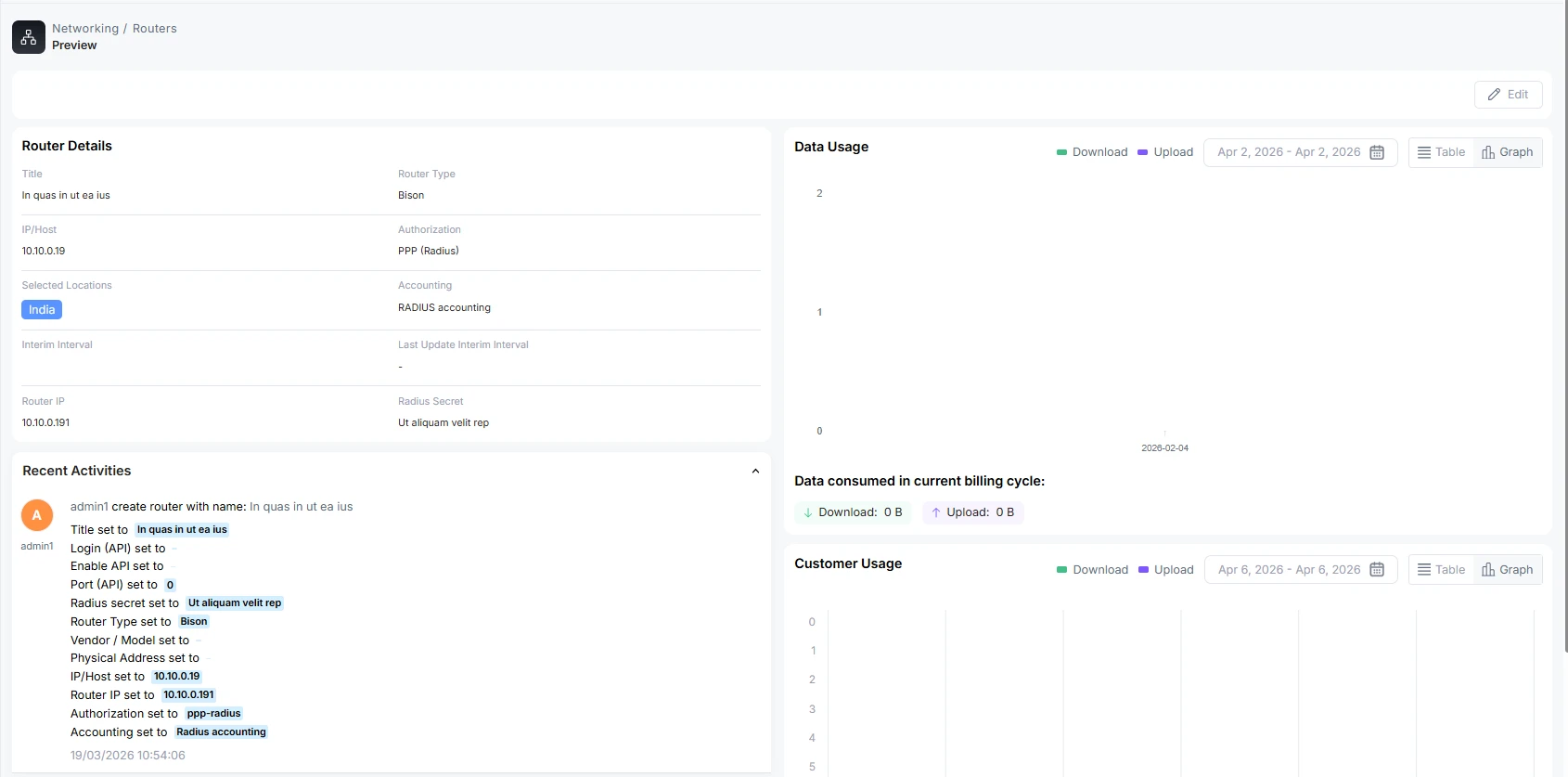
Router details
The Router Details card restates the device's stored configuration so you can confirm it at a glance without opening the edit form:
| Field | Meaning |
|---|---|
| Title | The name identifying this router. |
| Router Type | The vendor family (Mikrotik, Bison, Juniper, Cisco, Other). |
| IP/Host | The primary address used to reach the router. |
| Authorization | The authentication/authorisation method (e.g. PPP (Radius)). |
| Selected Location | The location(s) this router serves, shown as badges. |
| Accounting | The usage-tracking method (e.g. RADIUS accounting). |
| Interim Interval | How often (seconds) the router sends accounting updates for live sessions. |
| Last Update Interim Interval | The most recent time that interval was refreshed. |
| Router IP | The address the router presents to RADIUS as its Router-IP. |
| Radius Secret | The shared secret between the router and the RADIUS server. |
To change any of these, use the Edit button (which opens the same form described in Add a Router).
Data usage
The Data Usage chart shows how much traffic this specific router has carried — upload and download volume over the selected period. You can switch between a graph view and a table view, and change the time window with the date-frequency dropdown or a custom date range. The chart opens on a sensible default window based on where this router actually has data. See Router usage dashboards for the full explanation of the controls.
Customer usage
The Customer Usage chart shows the top data-consuming customers connected through this router, by name, over the selected period. Like the data-usage chart it offers graph/table modes and the same date controls. Use it to spot which customers are driving the load on a given NAS.
Recent activities
The Recent Activities panel is an audit trail for this router. Every time someone creates or edits the router (or its parameters), an entry is recorded here showing who made the change and what they did. Use it to trace configuration changes back to a person and a time.
A note on speed / policy changes
When a customer's plan or policy changes, AltRadius applies it using a Packet of Disconnect (POD) — the customer's current session is disconnected, and the new speed/policy takes effect the moment they reconnect and re-authenticate. There is no live in-session change (no CoA). This is normal and expected: a brief reconnect is how the new profile is enforced.
Troubleshooting
| Symptom | Likely cause / fix |
|---|---|
| Recent Activities is empty | No configuration changes have been recorded for this router yet. |
| A speed change didn't take effect | The customer must reconnect (re-authenticate) for the new profile to apply — changes use POD, not a live in-session update. |