Customer Maps
The Customer Map plots your customers geographically and doubles as a live NOC overlay: at a glance you can see who is online versus offline, where offline clusters are forming, and drill straight into the affected customers. On top of the customer markers you can switch on a density/revenue/churn heatmap, upload coverage areas, show location boundaries, and enable the network-site, topology, and site-outage layers to overlay your infrastructure.
Throughout this page, online means the customer has an open RADIUS session right now (an accounting session with no stop time). Offline means no open session.
Where to find it: Sidebar → Customers → Maps. Viewing customers on a map is part of viewing customers, so no separate permission is required beyond the standard customer-list view permission.
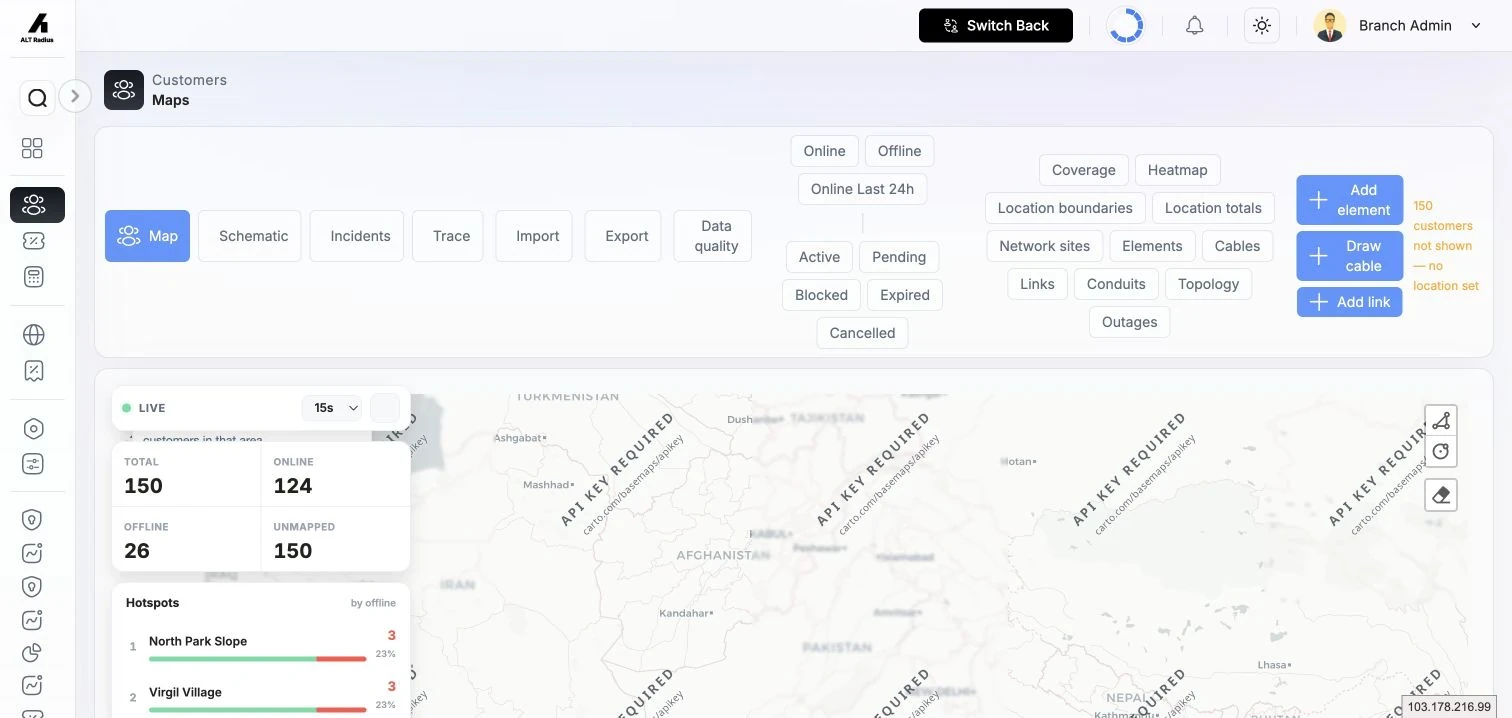
The map view and its filters
At the top of the page:
- The view switcher flips between Map, Schematic, Incidents, and Trace (the last three are covered under Network Topology and Network Incidents).
- The connectivity filter limits markers to Online, Offline, or online ~24 hours ago.
- The service-status filter limits markers to Active, Pending, Blocked, Expired, or Cancelled.
Markers are loaded for the area you're looking at and refresh as you pan and zoom. If there are more customers in view than the map will draw at once, a notice tells you it is "showing the first results — zoom in to see all", with the exact total.
A separate notice shows how many customers are not shown because they have no location set — a prompt to backfill their coordinates.
The NOC command rail (live counts and hotspots)
Overlaid on the map is a live command rail:
- A live indicator with an auto-refresh selector — Off, 15s, 30s, 60s, or 5m. This polls one lightweight cached counts endpoint (never the heavy marker set) and auto-pauses when the browser tab is hidden. A Refresh now button forces an update.
- A KPI strip: Total, Online, Offline, and Unmapped for your branch.
- Hotspots — the locations with the most offline customers, ranked highest-first, each with an online/offline bar and offline percentage. A No location row reconciles offline customers that have no location assigned.
Click a hotspot to open the offline triage slide-over (see below).
Drill into offline customers
Clicking a hotspot (or an offline count on a location) opens a slide-over listing the offline customers for that location. From there you can:
- open a customer's profile directly, or
- click Open in customer list to jump to the full customer list pre-filtered to that location and offline connectivity.
There are also NOC worklists behind the map for cleaning up location data:
- Located but unmapped — customers that have a location assigned but no map pin (they don't render until you pin them).
- No location — customers with no location at all.
Use the built-in geocode assist to fix these: search an address and drop a pin. The lookup runs through the server, so it's rate-limited and never exposes an operator's IP.
Heatmap
Toggle Heatmap to shade the map by area. Pick a mode:
| Mode | Shows |
|---|---|
| Density | Customers per area. |
| ARPU | Average revenue per area. |
| Churn | Cancelled share per area. |
The overlay recolours from a light to a hot tone as the metric rises, with a legend showing the low→high scale and a per-area tooltip. The heatmap redraws for the area you're viewing as you pan and zoom.
Coverage areas
Toggle Coverage to see your service-coverage polygons and to add new ones. Using the coverage control, give the area a name, choose a KML file, and click Upload KML. Active areas draw in your primary colour; inactive ones read as muted "drawn but disabled".
Location boundaries and totals
- Location boundaries draws the boundary polygons of your location hierarchy.
- Location totals overlays per-location aggregate counts (total / online / offline / without-pin) on those boundaries, so you can read customer distribution by zone without opening each one.
Select customers by drawing an area
Draw a polygon or circle on the map to select the customers inside it. The selection count appears in a notice, and — for selections of up to 100 customers — you can run a bulk action on them straight from the map (larger selections ask you to narrow the area first). Use Clear selection to reset.
Infrastructure layers
The layer row also exposes your recorded network (see Network Sites and Network Topology):
- Network sites — your POPs, cabinets, towers, and OLT rooms as typed markers.
- Elements, Cables, Links, Conduits — the fibre plant.
- Topology — the connectivity overlay tying it together.
Site outages panel
Toggle Outages (or click a network-site marker) to open the Site outages panel. For every site with coordinates it shows the branch-wide Total / Online / Offline customer counts and an offline-ratio bar, sorted worst-first. Sites with a high offline ratio bar red, medium amber, low green. An Unassigned customers bucket at the bottom covers customers with no site link. The site you clicked on the map is highlighted in the list.
This is the fastest way to answer "is this a site-wide outage or scattered individual faults?" — a single site at the top with a high offline ratio points straight at an infrastructure problem, which you can then log as an incident (see [[new-network- incidents|Network Incidents]]).
Permissions and scope
- The Customer Map, its live counts, and the offline/unmapped worklists use your standard customer-list view permission — no dedicated map permission exists.
- The network-site and topology/outage layers additionally require the relevant networking permissions granted to your role.
- Everything on the map is scoped to your branch, and (for reseller roles) to the customers you manage.
Troubleshooting
| Symptom | Cause / fix |
|---|---|
| "customers not shown — no location set". | Those customers have no coordinates. Use the geocode assist / worklists to pin them. |
| "Showing the first results — zoom in to see all." | More customers are in view than the map draws at once. Zoom in or apply a filter. |
| A customer with a location still isn't on the map. | They're located but unmapped (no pin). Use the located-but-unmapped worklist to drop a pin. |
| The command rail counts look stale. | Auto-refresh may be Off or paused (tab hidden). Pick an interval or click Refresh now. |
| Online/offline looks wrong. | "Online" strictly means an open RADIUS session — a customer that has disconnected but whose service is still Active counts as offline. |
| A network site isn't on the outage panel. | It has no coordinates — set its location on the Network Sites page. |