Network Topology
Network topology is where you document your physical outside plant — the network elements (OLTs, splitters, closures, cabinets, poles), the fibre cables between them, the individual strands inside each cable and how they are spliced, and the logical links/circuits that ride over them. Once your plant is recorded, the CRM can draw a schematic of the whole network, trace connectivity end-to-end, and — when something breaks — work out exactly which customers are affected.
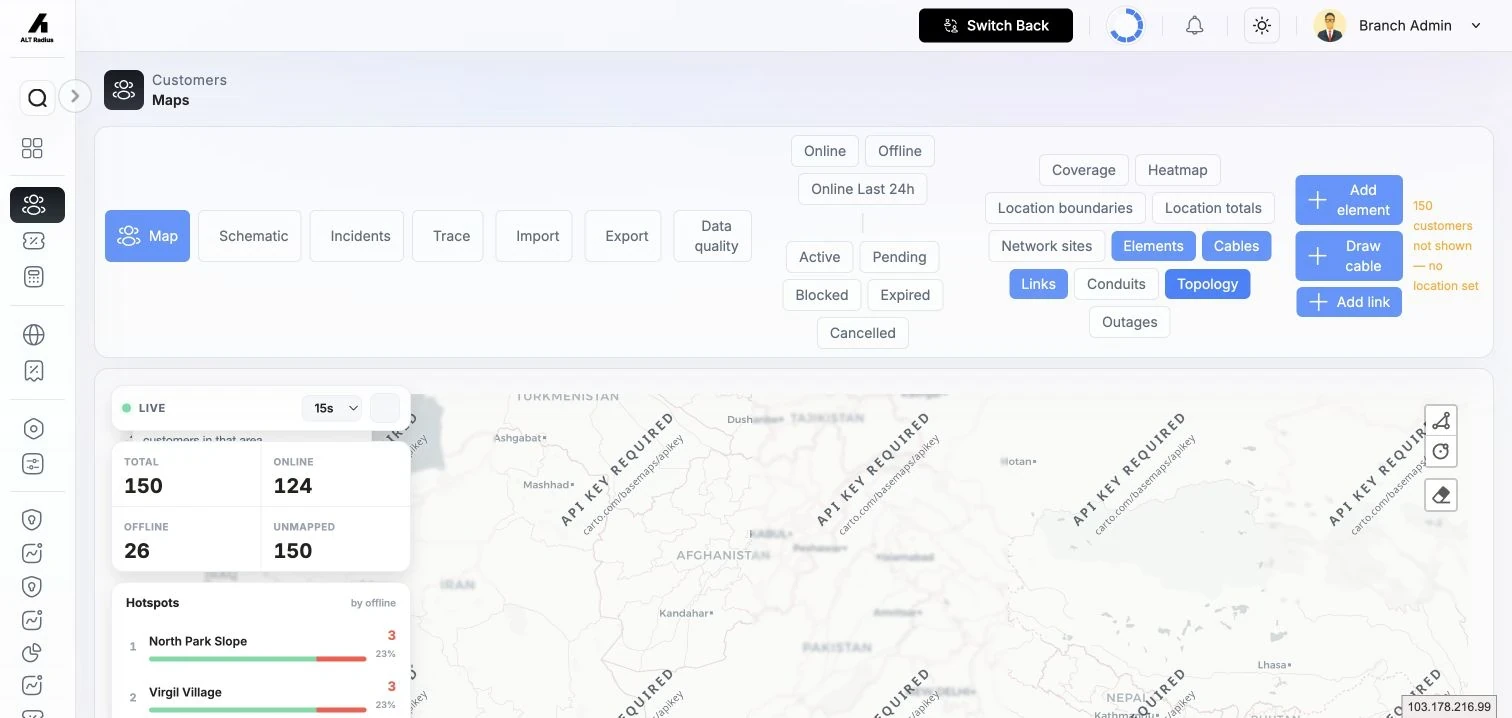
Topology is built and edited on the Customer Map, because everything here is geographic: you drop elements on the map and draw cables along their real routes. The map's view switcher lets you flip between the Map, a Schematic diagram, the Incidents console, and a Trace tool, all backed by the same data.
Where to find it: Sidebar → Customers → Maps, then use the layer toggles and the Add element / Draw cable / Add link buttons. Turn on the Elements, Cables, Links, Conduits, and Topology layers to see what you have recorded.
The workflow to document a real network
Build your plant from the outside in, in roughly this order:
- Record your sites first (see Network Sites) so elements and cables have anchor points.
- Place network elements (OLTs, splitters, closures, ODFs, cabinets, poles).
- Draw fibre cables between sites and elements, and set the fibre count.
- Generate the strands inside each cable and mark their status.
- Splice or terminate strands at closures and ODFs, and assign element ports to strands.
- Add logical links/circuits that ride over the cables, with capacity and utilisation.
- Run the data-quality scan to catch gaps, and export or import plant to exchange it with survey/GIS tools.
Each step is covered below.
Network elements
An element is a piece of equipment or a passive point in the plant. Element types are:
| Type | Meaning |
|---|---|
| OLT | Optical line terminal / GPON head-end. |
| Splitter | Optical splitter. |
| Splice closure | A closure where strands are spliced. |
| ODF / patch panel | Optical distribution frame / patch panel. |
| Cabinet | Street cabinet / enclosure. |
| Pole | Pole. |
| Hand-hole | Hand-hole access chamber. |
| Manhole | Manhole access chamber. |
| Other | Anything else. |
Add an element
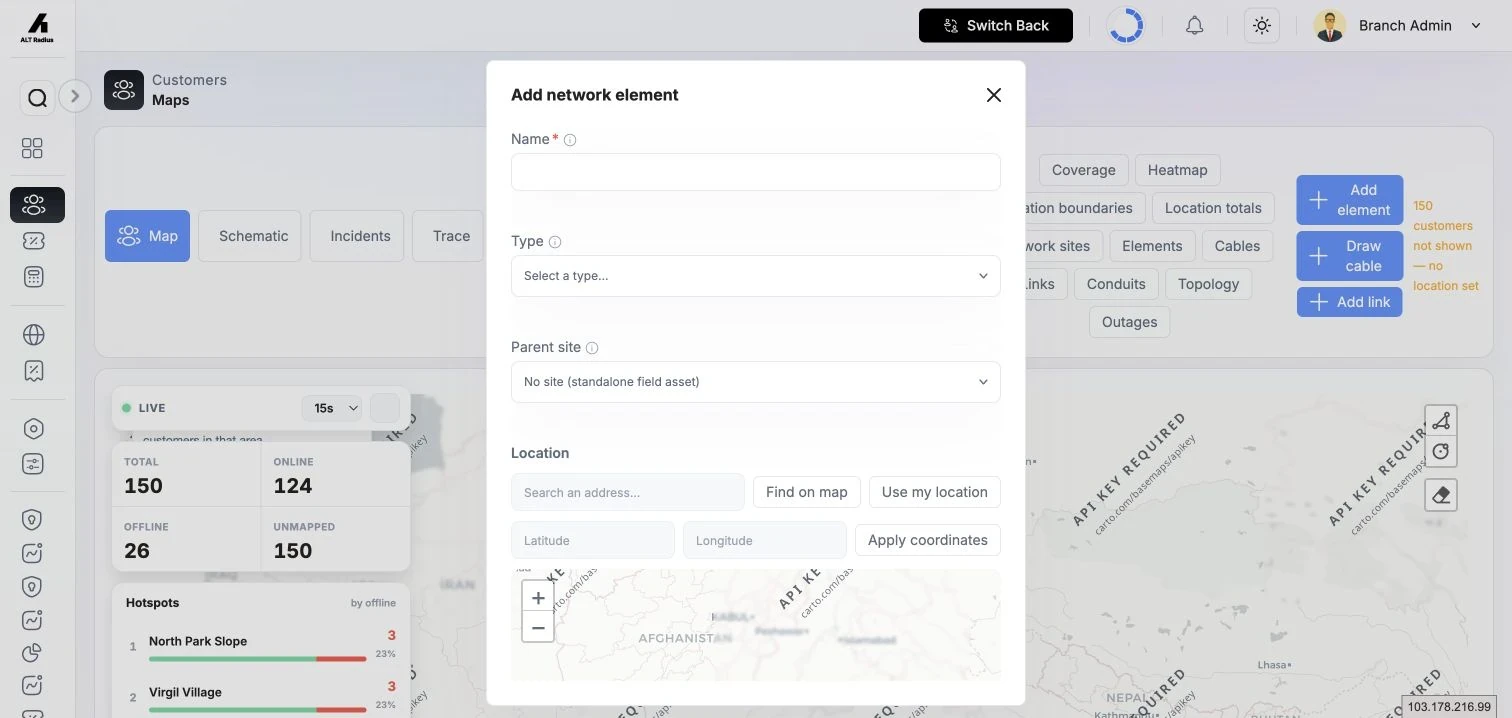
- On the map, enable the Elements layer and click Add element.
- Fill in the form:
- Name (required).
- Type — choose from the list above.
- Parent site — the site this element belongs to, or "No site (standalone field asset)" for something out in the field.
- Location — drop or search for a pin.
- Notes and Active as needed.
- Click Save. The new element appears as a marker on the map.
Click any element marker to open its preview, from which you can Edit, Delete, or open its Ports and Splice closure panels.
Element ports and occupancy
Ports model the physical/logical connectors on an element (PON, uplink, splitter in/ out, ODF, other). Open an element and choose Ports.
- If the element has no ports yet, click Auto-create ports to generate a standard set for that element type.
- Add a single port manually with Add, giving it a name and a port type.
- The top bar shows counts — All, Assigned, and Free — so you can see occupancy at a glance and filter to just the free ports.
- To connect a port to a fibre strand, click Assign on a free port and pick a strand; the port then shows the connected cable, strand number, and fibre colour.
- Remove a connection with the unbind (×) control, or delete a port entirely with the trash control.
Fibre cables
A cable is a physical fibre run between two endpoints (each endpoint is a site or an element), drawn along its real route on the map. Cable types are Backbone, Feeder, Distribution, Drop, and Other.
Draw a cable
- Enable the Cables layer and click Draw cable.
- Follow the on-map hint: click points along the route, then double-click to finish.
- The cable editor opens. Fill in:
- Name (required).
- Type.
- Fibre count — how many strands the cable carries.
- From and To — pick the endpoint site or element for each end.
- Route — shows "Route drawn · N points"; use Redraw on map to re-trace it.
- Notes and Active as needed.
- Click Save.
Click a cable to open its preview, from which you can Edit, Delete, or Manage strands.
Generate and manage strands
Open a cable and choose Manage strands.
- On a cable whose strands haven't been created yet, click Auto-generate strands — this creates one strand per fibre in the cable's fibre count, grouped into tubes and coloured in standard fibre order (Blue, Orange, Green, Brown, Slate, White, Red, …).
- Each strand shows its number, fibre colour, current status, and where its two ends terminate (a port or a splice), or "Unassigned".
- Change a strand's status by clicking it and picking a new one.
Strand statuses:
| Status | Meaning |
|---|---|
| Spare | Available, not in use. |
| In service | Carrying live traffic. |
| Reserved | Set aside for a planned use. |
| Dark | Present but unlit. |
| Damaged | Faulty / out of service. |
The status bar at the top counts strands per status so you can see cable occupancy.
Splices at a closure
Open a closure element and choose Splice closure to wire strands between the cables entering it.
- Pick the in-cable and out-cable from the two pickers.
- Click an in-strand on the left, then the matching out-strand on the right to create a splice; a curved line joins them in the strand's fibre colour.
- Choose the splice type — Splice or Pass-through.
- Click an existing splice line to remove it.
Network links (circuits & capacity)
A link is a logical circuit between two endpoints that rides over one or more physical cables. Links carry capacity and utilisation, which feed the map's capacity view. Link types are Fibre, Backhaul, Wireless, and Logical.
Add a link
- Enable the Links layer and click Add link.
- Fill in:
- Name (required) and Type.
- Capacity — a number plus a unit (Mbps or Gbps).
- From and To endpoints (site or element).
- Rides over (cables) — add the physical cables this circuit uses; they appear as removable chips.
- Utilisation — choose Auto (resolve) or Manual:
- Auto resolves utilisation from the best available source, in this order: Live (sampled from the MikroTik API / RADIUS accounting / SNMP by a job, used when fresh) → Computed (active-customer plan Mbps on this link ÷ capacity, used when there is no live telemetry and no override) → falls back to your manual override only if set.
- Manual lets you enter a fixed utilisation percent that beats the computed estimate; only fresh live telemetry outranks it.
- Notes and Active as needed.
- Click Save.
The schematic, trace, and impact
Use the view switcher at the top of the map:
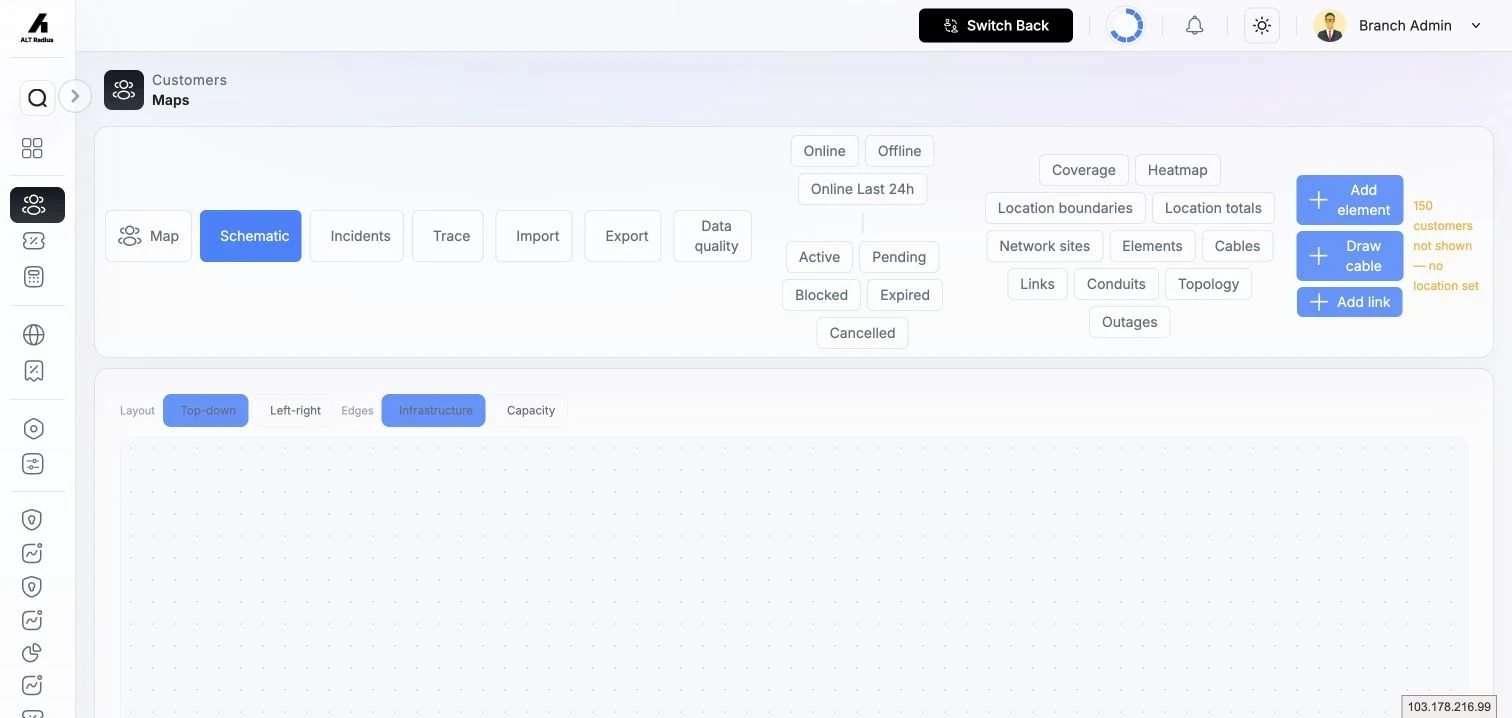
- Schematic draws the whole branch's topology as a node-and-edge diagram, so you can read the network structure without the geography.
- Trace lets you click a node to seed a connectivity trace; the server returns the connected set, and you can push it back onto the map with Show on map to highlight the affected nodes (and any shared conduits). This is the same blast-radius engine the incidents console uses to work out impacted customers (see Network Incidents).
Conduits (physical diversity)
Enable the Conduits layer to see the trenches/ducts your cables share. This matters for diversity: two "separate" circuits that ride the same conduit both fail if that trench is cut. When you show a blast radius on the map, shared conduits inside the impact are highlighted too.
Data quality
Open Data quality from the map toolbar to keep your plant clean.
- Click Re-validate to scan the plant. The panel shows KPIs — open errors, warnings, and a "plant clean" percentage — and lists each issue with its rule and the affected asset.
- To silence a known-acceptable finding, click Dismiss and enter a reason.
- Issues are re-checked automatically as you edit the plant, so a fixed problem clears on the next scan.
Import and export plant
- Import — upload a survey or contractor file (GeoJSON, JSON, KML, or KMZ). It lands in staging first, where you review a diff of every change grouped as Added / Moved / Attribute-changed / Deleted / Quarantined / Unchanged. Accept or reject each change (or a whole group), then Promote to apply only the accepted changes to live plant. Nothing touches the live network until you promote.
- Export — export your branch's plant to GeoJSON/KML/KMZ for use in external GIS tools.
Permissions
All topology actions — placing elements, drawing cables, generating strands, splicing, adding links, importing/exporting, scanning and dismissing data-quality findings — require the topology permissions (view / add / update / delete) granted to your role. These are Admin (branch) capabilities; the reseller roles do not have topology access. Buttons you lack permission for are hidden. All plant is scoped to your branch.
Troubleshooting
| Symptom | Cause / fix |
|---|---|
| No strands to assign to a port. | Generate the cable's strands first (Manage strands → Auto-generate). |
| A cable's route won't save. | You must draw a route on the map — use Draw cable or Redraw on map before saving. |
| A closure shows "No cables connect to this closure yet." | Set a cable's From/To endpoint to that closure element first. |
| Utilisation looks wrong on a link. | Auto mode prefers live telemetry, then a computed estimate; set a Manual override if you need a fixed value (only live telemetry outranks it). |
| An import changed nothing. | Imports stage first — you must accept changes and click Promote. Quarantined rows are never auto-applied. |