Integrations, Payments & Taxes
This page covers two Config sections: Integration (the gateways, messaging profiles, and notification rules that deliver email / SMS / WhatsApp to your customers and staff) and Billing (taxes, payment modes, payment methods, payment accounts, and online payment gateways). Together they decide how the CRM talks to customers and how it records money coming in.
Where to find it: Sidebar → Config → Integration, and Sidebar → Config → Billing.
Integration
Notifications in the CRM flow through three layers: a Provider (the third-party gateway that actually sends the message), a Messaging Profile (a saved set of credentials for a gateway, optionally owned by a partner), and a Notification Event (which template and channel fire for a given situation). You configure them in that order.
Providers (gateways)
Providers are the messaging gateways the CRM can use — for example Watilio and Watseen — for email, SMS, and WhatsApp. This page lists the available gateways and the credential fields each one needs.
Where to find it: Sidebar → Config → Integration → Providers.
| Field | What it does | Notes |
|---|---|---|
| Gateway | The provider/gateway name. | |
| Name | A descriptive name for the entry. | |
| Type | The channel it serves (Email, SMS, WhatsApp). | |
| Is Active | Whether the provider is available. | |
| Fields schema | The credential fields the gateway requires. | Provider-specific — e.g. API Key, Secret Key, Account Unique ID, Device Number. |
Messaging Profiles
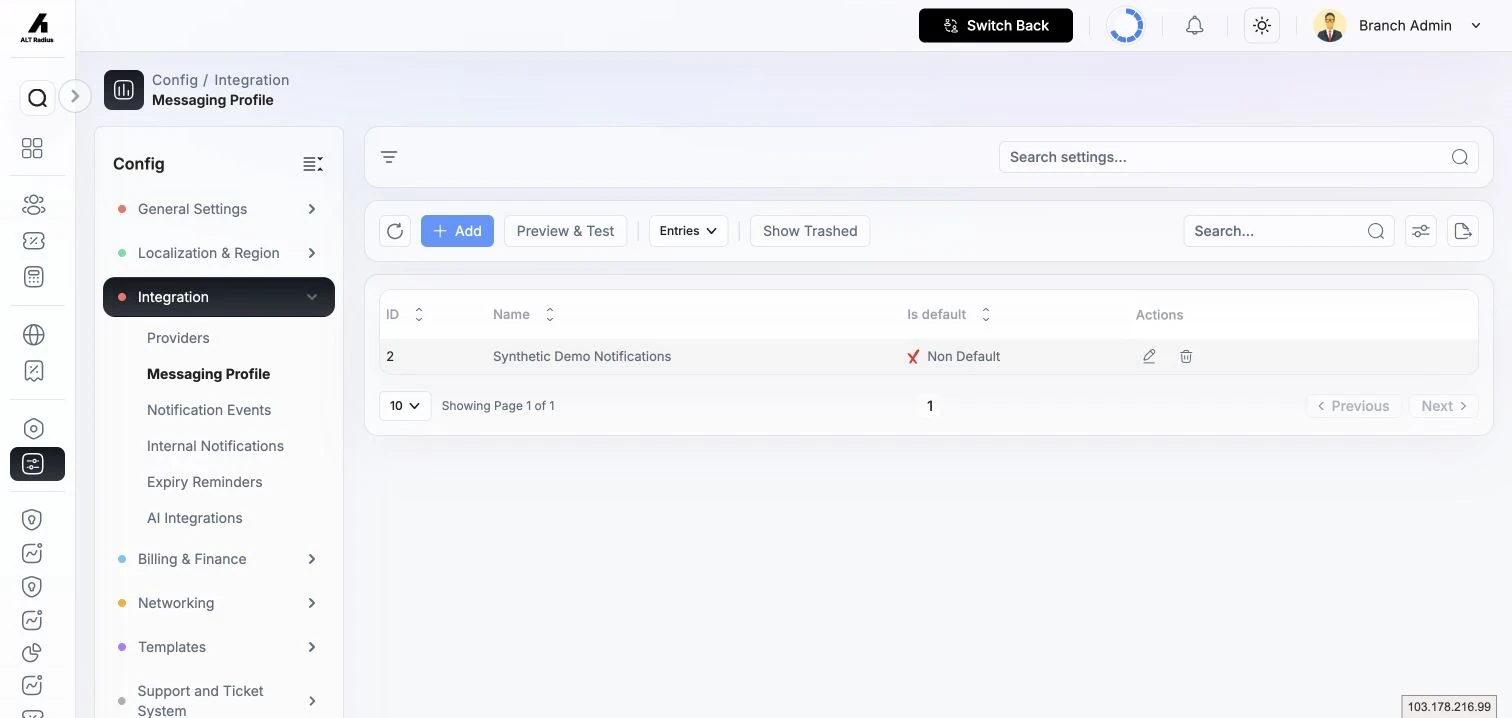
A messaging profile is a saved, testable set of credentials for a gateway. A profile can be assigned to a specific partner (so that partner's messages go out under their own account) or left at branch level as a shared default. A messaging profile must exist before it can be used by a notification event.
Where to find it: Sidebar → Config → Integration → Messaging Profile.
Create a messaging profile
- Click Add.
- Choose the provider — provider-specific credential fields appear.
- Fill in the fields below and save.
| Field | What it does | Notes |
|---|---|---|
| Provider | The gateway this profile uses. | Reveals the extra credential fields for that gateway. |
| Name | A descriptive name for the profile. | |
| Shared / Is default | Whether this is the default profile. | |
| Partner | The partner this profile belongs to. | Leave blank to make it a branch-level profile. |
Test & Verify. The create/edit form has a Test & Verify panel:
- Test Connection validates your credentials with the gateway. This is free.
- Send Test Email / Send Test Message dispatches a real message to a recipient you enter, so you can confirm end-to-end delivery. Sending a test uses the gateway and may incur charges.
Preview & Test Send
From the Messaging Profile page (and from the Expiry Reminders screens) you can open Preview & Test Send. It renders a chosen notification event for a real service, in a chosen channel and locale, so you can see the exact message a customer would receive and optionally send it to an override recipient before going live.
| Field | What it does |
|---|---|
| Event Type | Which notification event to preview. |
| Channel | Email, SMS, or WhatsApp. |
| Locale | The language to render the message in. |
| Service | The real service whose data fills the placeholders. |
| Override Recipient | Send the test to a specific address/number instead of the customer. |
Open Preview & Test from the Messaging Profiles page or an Expiry Reminders screen. It is an action on those pages, not a separate Config sidebar item.
Notification Events
Notification Events are the system-defined moments the CRM notifies customers and partners about — service activation, plan updates, and so on. For each event you choose which channels are on (Email, WhatsApp, SMS) and, per channel, which template and which messaging profile deliver it.
Where to find it: Sidebar → Config → Integration → Notification Events.
The table lists each event with a column per channel. Turn a channel on, pick its template, pick the messaging profile to send through, and save. A messaging profile is required for any channel you enable.
| Column | What it does |
|---|---|
| Title | The event name. |
| Enable email for this event and choose its template + profile. | |
| Enable WhatsApp for this event and choose its template + profile. | |
| SMS | Enable SMS for this event and choose its template + profile. |
Internal Notifications
Internal Notifications control the in-app bell — who on your team gets notified when CRM and ticket events happen. It is split into two tabs, CRM Events and Ticket Events, and for each event you pick who to notify.
Where to find it: Sidebar → Config → Integration → Internal Notifications.
The "Notify Whom" options include Admin, Partner, Assignee, Team, and Watchers.
Expiry Reminders
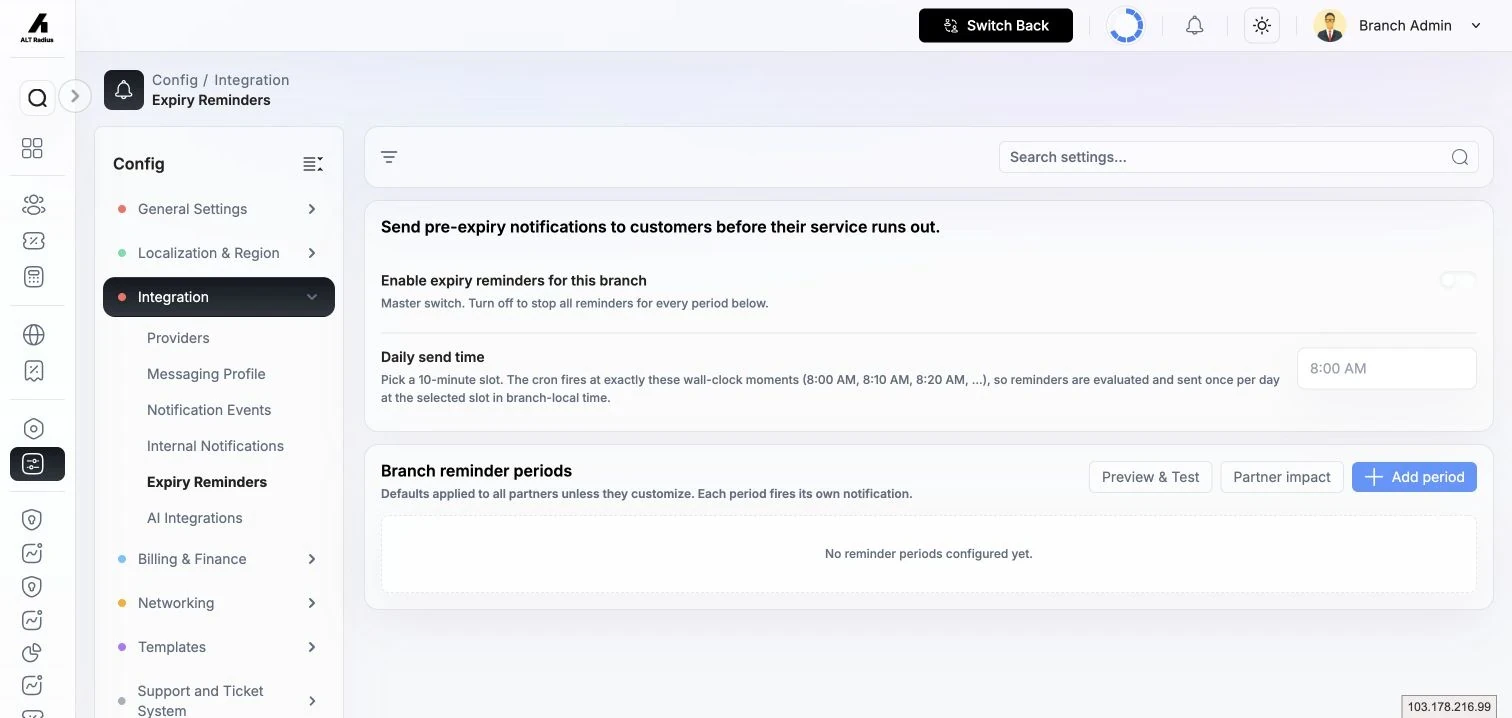
Expiry Reminders schedule automatic reminder messages to customers ahead of service expiry. You set a daily send time, define one or more reminder periods (how many days before expiry to send), and choose which channels each period uses. A partner can inherit the branch defaults, customise their own periods, or disable reminders for their customers.
Where to find it: Sidebar → Config → Integration → Expiry Reminders.
| Setting | What it does | Notes |
|---|---|---|
| Enable expiry reminders for this branch | Master on/off for the whole branch. | |
| Daily send time | The time of day reminders go out. | |
| Reminder periods | One row per "days before expiry" reminder. | Add, edit, enable/disable, or delete each period. |
| Channels | Which channels (email / SMS / WhatsApp) each period uses. | Per-channel readiness chips show whether a channel is actually ready to send, with reasons if not. |
You can also send a reminder manually and retry a failed send (individually or as a batch) from this screen.
If the service provider has disabled expiry reminders globally, a banner explains that reminders are off for all branches regardless of this branch's setting.
Billing
The Billing section is where you set up the taxes that appear on invoices and the payment infrastructure — modes, methods, and accounts — used to record payments.
Taxes & Tax Groups
Define the taxes the CRM can apply, either as a single tax or as a group of taxes bundled together. Groups are handy when a tariff plan or item attracts more than one tax at once.
Where to find it: Sidebar → Config → Billing → Taxes.
Add a single tax — click Add Tax, then enter:
| Field | What it does |
|---|---|
| Name | The tax's title (e.g. VAT). |
| Rate | The percentage rate. |
Add a tax group — click Add Tax Group, name the group, then add each component tax with its percentage and the amount it applies on. For example a Standard Internet group might bundle VAT (15%) and Infrastructure Cess (1%).
Use the search box to check whether a tax or group already exists before adding a duplicate.
Payment Mode
A payment mode is the broad payment type — cash, bank, e-wallet, and so on. Modes defined here are the building blocks you attach to payment methods.
Where to find it: Sidebar → Config → Billing → Payment Mode.
| Field | What it does |
|---|---|
| Name | The mode's name (e.g. Cash, Bank). |
Payment Method
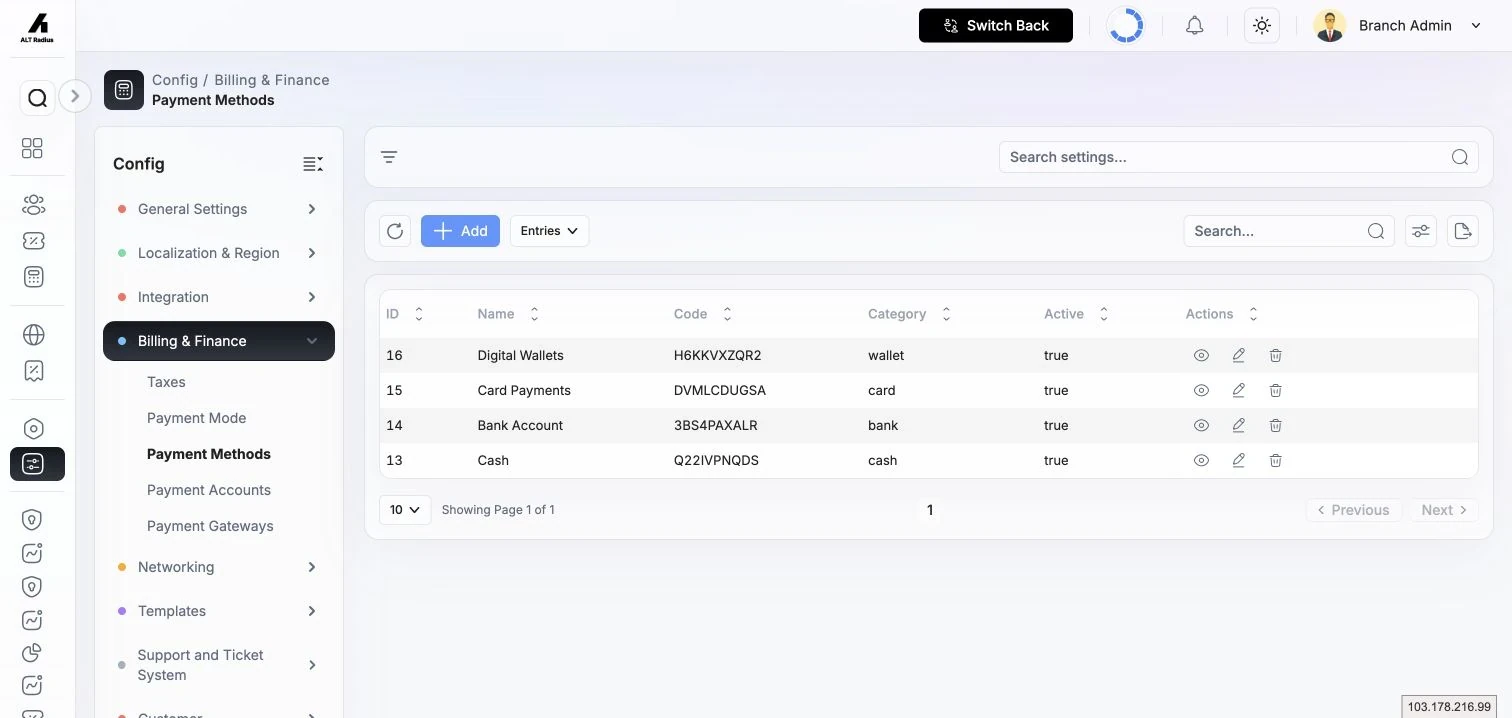
A payment method is a way staff record how money was received, such as cash, bank transfer, card, or digital wallet. Its name does not prove that an online processor is connected. Each method draws on one or more payment modes and can define custom fields that must be captured when a payment account of this method is created.
Where to find it: Sidebar → Config → Billing → Payment Method.
| Field | What it does | Notes |
|---|---|---|
| Name | The descriptive method name. | e.g. Bank Transfer, Mobile Money. |
| Code | A short code for the method. | |
| Category | The category the method belongs to. | |
| Modes | The payment mode(s) this method supports. | Choose one or several (e.g. cash and bank transfer). |
| Active | Whether the method is available to users. | Inactive methods are hidden. |
Custom Fields. Add the extra pieces of information a method needs. Each field has:
| Field | What it does | Notes |
|---|---|---|
| Key | The identifier for the piece of information (e.g. from the bank or gateway). | |
| Label | The name shown for the field in the payment-account form. | |
| Required | Whether the field must be filled in. | When on, the field is enforced before a payment account can be saved. |
Payment Accounts
A payment account is a specific place money lands — a particular bank account or wallet — recorded against either a partner or the branch. When a partner is chosen the account belongs to that partner; with no partner it is a branch account.
Where to find it: Sidebar → Config → Billing → Payment Accounts.
Add an account
| Field | What it does | Notes |
|---|---|---|
| Payment Method | The method this account is for. | Reveals that method's custom fields. |
| Name / Label | A descriptive name for the account. | e.g. Main Bank Account. |
| Partner | The partner the account belongs to. | Leave blank for a branch account. |
| Account Type | Whether the account is for a user or a customer. | |
| Default | Make this the default account for the selected method. | |
| Bank details | Bank Name, Account Title, Account Number, IBAN, plus any method custom fields. | Shown according to the chosen method. |
For the complete manual setup and owner checks, see Payment Methods and Accounts.
Online Payment Gateways
Payment Gateways is a separate Config page for connecting an actual online merchant account. The production chooser offers JazzCash, JazzCash Card, Easypaisa, PayTabs, Stripe, and inbound biller 1Bill / Kuickpay. Each requires its own provider account, connection owner, credentials and any applicable callback setup. The presence of a manual "Card Payments" or "Digital Wallets" method does not activate online checkout. PayPal is not a native gateway in this release.
Where to find it: Sidebar → Config → Billing & Finance → Payment Gateways.
For the provider comparison and safe connection procedure, see Online Payment Gateways.
Troubleshooting
- A notification event will not turn on a channel. Every enabled channel needs both a template and a messaging profile selected; the form blocks saving until both are set.
- Messages are not being delivered. Open the messaging profile and run Test Connection, then Send Test Message, to confirm the gateway credentials work. Check the per-channel readiness chips on Expiry Reminders for a reason when a channel is not ready.
- A payment account cannot be deleted. Accounts that are currently in use cannot be removed — they must stay for the historical records that reference them.
- A custom field is not being asked for. Confirm the field is marked Required on the payment method; optional fields do not block saving.