Payments
Applies to all editions
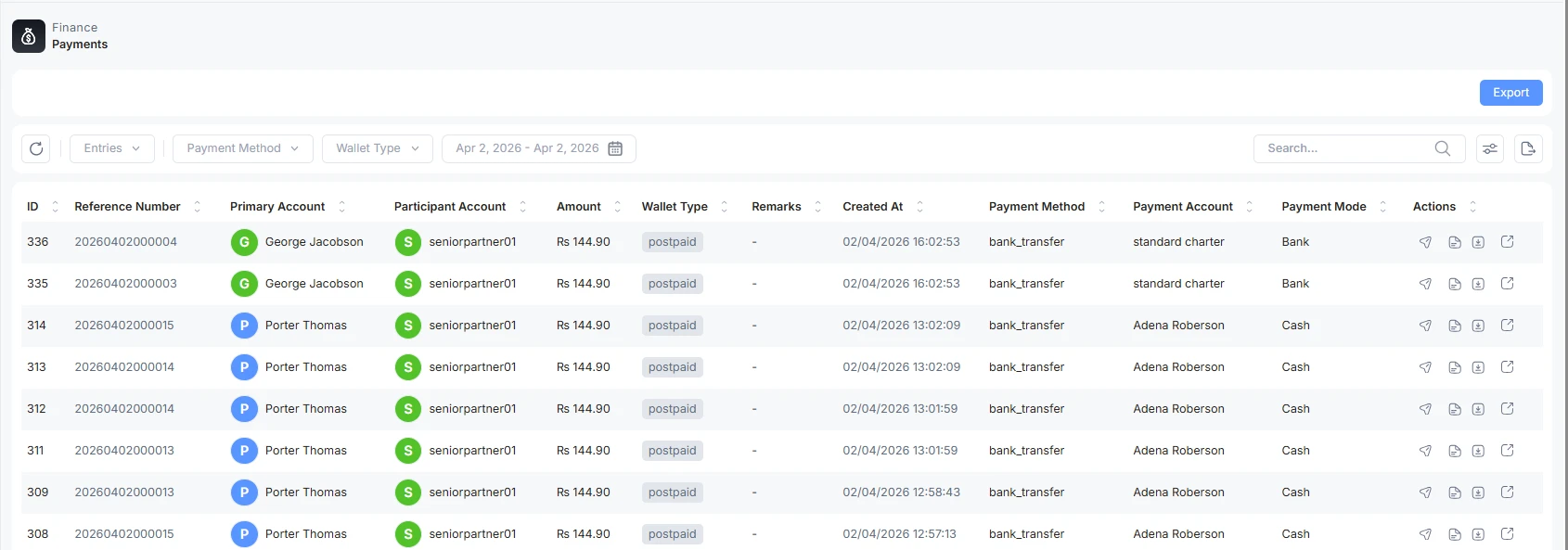
A payment receipt records money received from a customer. The list is every receipt your branch (or the selected partner) has taken.
What a receipt is
Each receipt captures one payment. The important distinction is its source:
Operator guide
A payment receipt records money received from a customer. The list is every receipt your branch (or the selected partner) has taken.
What a receipt is
Each receipt captures one payment. The important distinction is its source:
- Wallet , the payment came out of the customer's own prepaid wallet balance.
- External , the payment came in from outside: bank transfer, cash, card, and so on. The method, account, and mode are recorded as proof.
A receipt also carries a settlement status showing where it is in its lifecycle , most receipts you record land as settled (confirmed and applied to the invoice). Recording a settled receipt is what applies the payment to the customer's invoice and, where relevant, triggers partner settlements.
Columns
| Column | What it shows |
|---|---|
| ID | System running number. |
| Payment Receipt Number | Opens the receipt detail. |
| Reference Number | The invoice this payment was applied to, if any. |
| Primary Account | The account that made/received the payment. |
| Participant Account | The other account in the payment. |
| Amount | The amount paid. |
| Wallet Type | Prepaid or Postpaid. |
| Funding Source | Where the money was funded from , Branch Funded, From Parent (with the counterparty), or a dash. |
| Remarks | Operator notes. |
| Payment Details | For wallet payments: "Wallet". For external: the method (e.g. Bank Transfer) with account · mode underneath; hover for the full detail. |
| Received By | The staff member who recorded it. |
| Settlement | Green settled, or a red refunded / charged back / reversed badge. |
| Actions | Preview, PDF view/download, Reverse as Refund, Reverse as Chargeback. |
Receipt detail and PDF
Preview opens the receipt: payer, date, who recorded it, the amount, the payment method detail, which invoice it was applied to, any partner settlements it triggered, and any tax entries. The PDF actions open the receipt in a new tab or download it, rendered from your branch's receipt template.
Reverse a payment (refund or chargeback)
Reversing a receipt unwinds a payment you have already taken. There are two flavours, which differ only in how the reversal is labelled and reported:
- Reverse as Refund , you returned the money to the customer.
- Reverse as Chargeback , the bank or card provider pulled the money back.
A receipt can only be reversed when all of these are true:
- It is linked to an invoice.
- Its source is External (wallet-sourced payments cannot be reversed here).
- It is currently settled.
- It is a real customer payment (not an internal partner-wallet receipt).
If any condition fails, you will see "Only settled customer payment receipts can be reversed."
What a reversal does (this is a cascading rollback , understand it before you click):
- The receipt is marked refunded or charged back. Reversing again does nothing (it is safe to retry).
- Partner settlements are unwound. Any commission or settlement the receipt triggered is reversed and the partner's wallet balance is restored , they lose the credit that payment gave them.
- The invoice is re-opened. The invoice goes back to Due and its due amount is restored to what was outstanding before the payment. Its payment date is cleared. For a postpaid customer, the money is debited back out of their account so their balance reflects the un-payment.
- Overpayment credit is clawed back. If the original payment overpaid and left extra credit in the customer's wallet, that surplus is removed so the customer is not left holding money from a payment that has been reversed.
- Finance staff are notified that a receipt was reversed.
In short: after a reversal, the books look as though the payment never happened , the invoice is due again, the partner's earnings are rolled back, and any leftover wallet credit is removed. Because it touches the customer balance, the partner, and possibly the tax ledger, treat reversal as a deliberate correction, not a routine edit.
Filter the list
Available filters: Entries, Payment Method, Wallet Type, Funding Source (All / Branch Funded / Parent Transfer), a date range, Search, and a Trashed toggle.
Choose the payment route
Before you record or reverse a receipt, identify where the money actually moved. The payment-method label, payment account and gateway are different things.
| Situation | Correct route | What to check afterwards |
|---|---|---|
| Staff received cash, bank transfer or cheque outside the CRM | Record an External payment using the matching manual method and account | Receipt, invoice balance and the branch or partner ledger |
| Customer uses prepaid wallet credit | Choose Wallet when paying an eligible invoice | Wallet debit, settled receipt and invoice balance |
| Customer pays through a supported online link or portal | Let the connected gateway complete the attempt; do not create a second manual receipt | Provider-confirmed attempt, settled receipt and invoice status |
| Partner adds wallet funds | Use the authorised partner top-up, branch-funded transfer or manual receipt flow according to where funds came from | Partner wallet ledger and any branch receivable; see Branch Ledger |
The default Card Payments and Digital Wallets methods are recording choices, not proof of a live card or wallet processor. See Payment Methods and Accounts to configure them. See Online Payment Gateways to connect a real merchant account.
Do not mark an invoice paid because a customer returned from a hosted checkout page. Check the gateway's confirmed outcome and the resulting receipt. A pending or failed attempt is not a settled payment.
Refunds and reversals are not interchangeable. The receipt's Reverse as Refund action updates the CRM accounting record. Whether money can be returned through the original processor is a separate provider capability and depends on that transaction's state. Stripe and the JazzCash wallet driver expose processor refunds; the current JazzCash Card, Easypaisa, PayTabs and 1Bill drivers do not. Finance should verify where money was actually returned before selecting an accounting reversal or crediting a customer's wallet.