Tickets
Tickets is the staff-facing helpdesk built into AltRadius. Every support request — whether it arrives by email, WhatsApp, the customer portal, phone, SMS, or is raised internally by an agent — becomes a ticket that your team can triage, assign, answer, escalate, and close from one place. Each ticket keeps the full conversation with the customer, private internal notes, an assignment and status history, and (where configured) a service-level agreement (SLA) clock. When a network outage affects many customers at once, you can flag one ticket as a Major Incident and hang the related tickets off it so a single reply updates everyone.
This page covers the operator (staff) side of the helpdesk. Customers see a much simpler view in their portal — they only see the messages meant for them, never your internal notes.
Where to find it: Sidebar → Tickets. The sub-menu has List, Triage Queue, and CSAT. Ticket types, priorities, statuses, SLA policies, departments, channels, canned replies, and customer labels are all set up under Config → Support Ticket System.
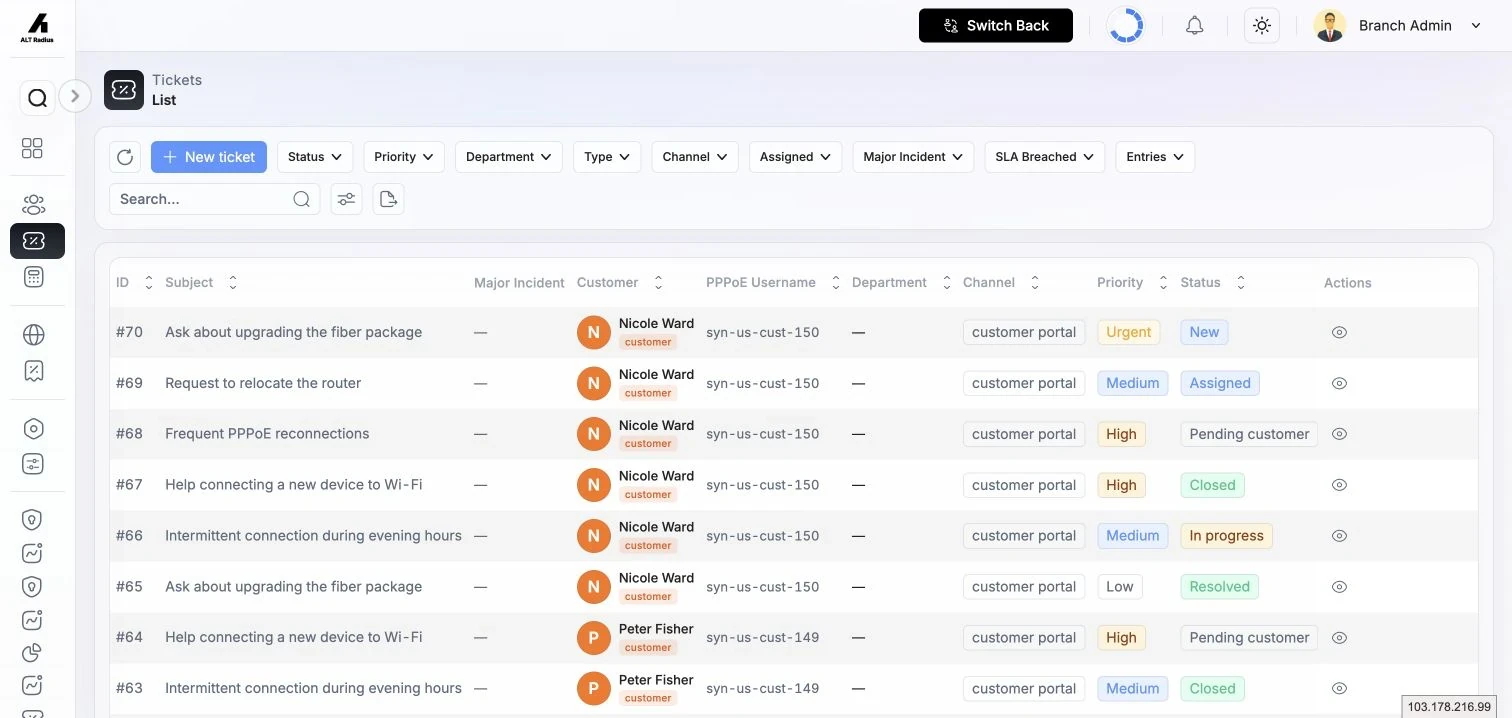
The ticket list
The list shows every ticket in your branch. Use the filter panel to narrow it down and the search box to jump to a ticket by subject, customer, or ID.
Columns: ID, Subject, Major Incident, Customer, Department, Channel (the source the ticket came in on — Email, WhatsApp, Portal, Phone, SMS, or Internal), Priority, Status, SLA, Assigned, Updated, and Actions.
Filters: Status, Priority, Type, Department, Channel, Assigned agent, Major Incident (on/off), and SLA Breached (on/off), plus a free-text search box.
Show / Hide Archive toggles whether archived tickets appear in the list. Archived tickets are hidden by default.
Badges you will see on a ticket
| Badge | What it means | What to do |
|---|---|---|
| Triage | The ticket landed with no partner/owner assigned and is waiting to be classified and routed. | Open it (or use the Triage Queue) to assign a customer and owner. |
| Major incident | This ticket is flagged as a widespread issue; other tickets may be attached to it as children. | Work it as the parent incident; broadcast replies reach all attached tickets. |
| Paused | The SLA clock is currently paused (usually because the ticket is in a "waiting for customer" status). | No action needed — the clock resumes when the status changes back. |
| Near breach | A response or resolution deadline is approaching. | Prioritise a reply before the deadline passes. |
| Breached | An SLA deadline has already passed. | Respond/resolve immediately; the ticket may auto-escalate. |
A pin icon next to the assignee means the assignment is pinned — auto-routing rules will not move this ticket to another agent. See the assignment guidance below.
Create a ticket
Raising a ticket by hand is useful when a customer calls in or an agent spots an issue. Creating a ticket requires the ticket-create permission granted to your role.
Where to find it: Tickets → List → New ticket.
| Field | What it does | Notes |
|---|---|---|
| Customer / Lead | Links the ticket to an existing customer or lead. | Required. Search is case-insensitive. |
| Department | The department responsible for the ticket. | Required. Four canonical departments ship out of the box. |
| Team | The team within the department. | Required. The assignee must be a member of this team. |
| Assigned to | The agent who owns the ticket. | Required. Only members of the selected team appear. |
| Watchers | Users who get notified about updates. | Required. |
| CC recipients | Extra email addresses copied on ticket emails. | Optional. Comma-separated, up to 255 characters. |
| Priority | The urgency level (e.g. Low, Medium, High, Critical). | Required. Drives which SLA policy applies. |
| Status | The starting workflow status. | Required. Defaults to your branch's default (usually "Open"). |
| Type | The category of issue (e.g. Complaint, Fault, Sales). | Required. |
| Subject | A short summary of the issue. | Required. Up to 255 characters. |
| Message | The full description of the request. | Required. |
| Location | The service location for field context. | Required. |
| Attachments | Files supporting the ticket. | Optional. PDF, DOC, DOCX, JPG, JPEG, PNG; up to 5 MB each. |
| Hide from customer | When on, the ticket is not shown in the customer's portal. | Optional checkbox. |
On save you'll see "Ticket added successfully!" and land on the ticket's detail view.
The Ticket 360 detail view
Opening a ticket takes you to Ticket 360, a full-screen three-pane workspace:
- Left — the ticket list, so you can move between tickets without leaving the view.
- Centre — the conversation thread.
- Right — detail tabs: Details, Customer, Assignment, Escalation, and (for WhatsApp tickets) a WhatsApp tab.
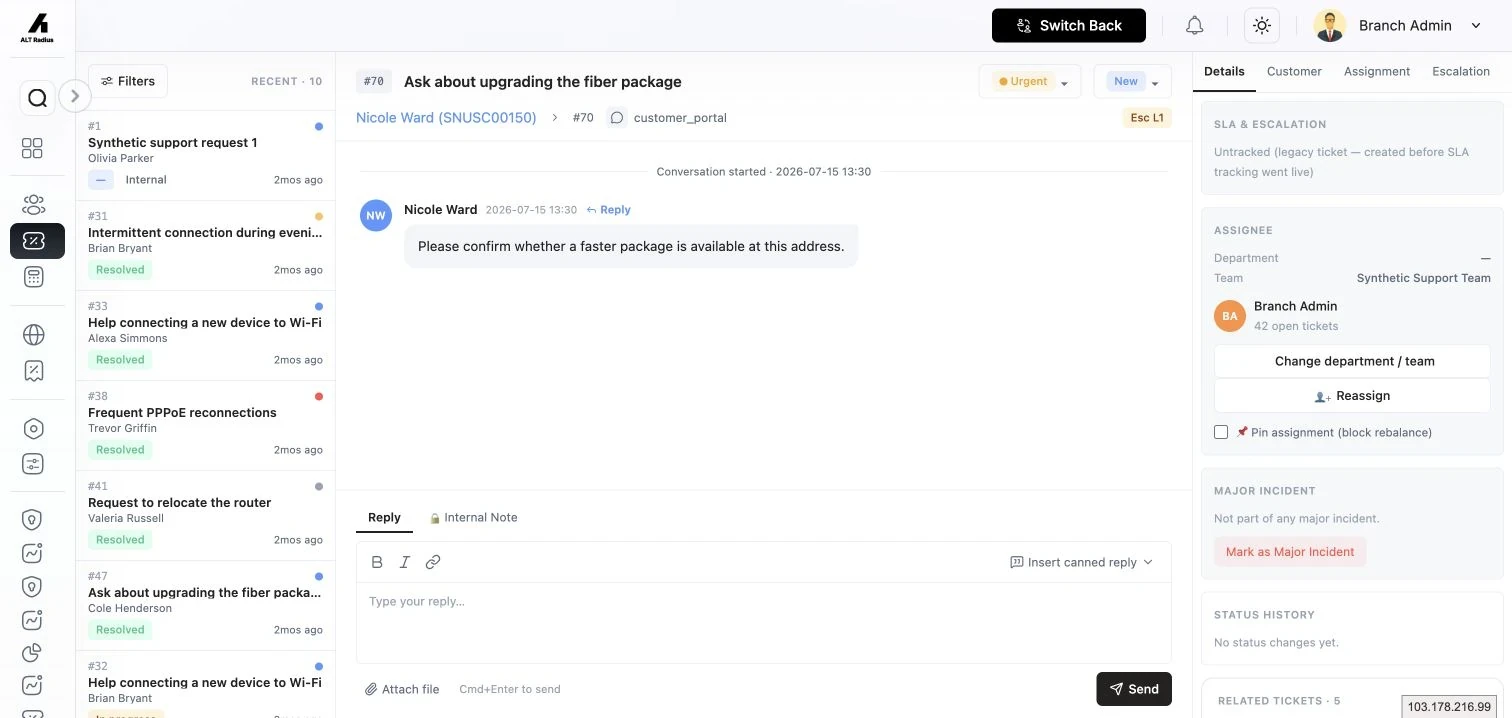
The conversation thread
The thread mixes three kinds of message plus system events. Each is styled differently so agents can tell them apart at a glance:
| Entry | Who sees it | Notes |
|---|---|---|
| Customer message ("From customer") | Customer and all agents | The customer's inbound messages. |
| Agent reply ("From support team") | Customer and all agents | Your public replies to the customer. |
| Internal note ("Internal note — not sent to customer") | Agents only | A private note on a distinct background. Never reaches the customer. |
| System events | Agents only | Status changes, assignments, escalations, SLA pause/resume, and SLA breaches appear inline as a timeline. |
Reply composer. Switch between Reply (public) and Internal Note (private) tabs. You can attach files (same file rules as above), insert a canned reply, and send with the on-screen Send button (keyboard: Cmd/Ctrl+Enter).
Canned replies
Canned replies are reusable response templates set up under Config → Support Ticket System → Canned Replies. In the composer, choose Insert canned reply, search by name, category, or body, and insert the one you want — you can still edit the text before sending. Only replies marked active for your branch appear in the picker.
The right-side tabs
Details — the SLA & Escalation panel (policy, first-response-by and resolution-by deadlines, and whether the SLA was met), the current assignee (with their open-ticket count), the routing (department/team), a snapshot of eligible agents in the assignment pool, and the status and assignment history timelines. Tickets created before SLA tracking went live show "Untracked (legacy ticket)" instead of deadlines.
Customer — a customer info card (member-since, email, phone, WhatsApp, city), the customer's active service and next renewal, network/OLT status where that integration is enabled, the customer's support labels, and their CSAT history (average score across past surveys).
Assignment — the current assignee, the assignment history (which strategy assigned the ticket and the pool size at the time), and the pool snapshot.
Escalation — the current escalation level shown as "Level X / 3", plus the escalation history and who the ticket was last routed to. An un-escalated ticket shows "Not escalated."
WhatsApp (only on WhatsApp-sourced tickets) — shows whether the 24-hour WhatsApp reply window is Open or Closed, and the time remaining.
Statuses and priorities
Both statuses and priorities are configurable per branch under Config → Support Ticket System, so the exact names on your system may differ from the examples here.
Statuses
Each status carries lifecycle flags that tell the system what the status means:
| Flag | Effect |
|---|---|
| Open | The ticket is still active and counts as open. |
| Resolved | Moving here stamps the resolved time. |
| Closed | The ticket is terminal — this stamps the closed time and (typically) sends the CSAT survey. A status cannot be both Open and Closed. |
| Reopened | Moving to this status counts the ticket as reopened. |
New branches are seeded with New, Pending triage, Assigned, In progress, Pending customer, Pending vendor, Pending materials, Resolved, Closed, and Reopened. Display names can be changed, while the underlying lifecycle codes remain stable.
Priorities
Priorities (e.g. Low, Medium, High, Urgent) are configurable too, each with its own badge colour. Priority matters beyond urgency: each SLA policy is tied to a priority, so the priority you set on a ticket determines which response/resolution deadlines apply.
Change a ticket's status or priority from the Ticket 360 view; both changes are recorded as system events in the conversation thread. Editing a ticket requires the ticket-update permission.
Assign and reassign a ticket
Manual assignment happens when you create a ticket — you pick an assignee from the selected team's members.
Reassign an existing ticket from Ticket 360: choose Reassign, pick a new user (team members only), optionally give a reason (up to 500 characters), and confirm. You'll see "Ticket reassigned successfully!" Reassigning requires the ticket-update permission and is limited to team leads and branch admins.
Pin (lock) the assignment with Pin assignment (block rebalance). While pinned, auto-routing rules will not move the ticket to another agent — but you can still reassign it by hand. Unpin it to return it to automatic rebalancing.
The Triage Queue and bulk assign
Where to find it: Tickets → Triage Queue.
The queue holds tickets that arrived with no partner/owner assigned. Each row shows the ID, subject, source, department, and how long ago it was received, with a running count of pending tickets.
- Triage one ticket — click the row to open Ticket 360, then assign a customer and owner (or reject it as spam).
- Bulk assign — tick several rows (or Select all), choose Bulk assign, pick the agent, add an optional reason, and confirm. Bulk assign is limited to branch admins and department leads.
Escalation
Escalation pushes a stubborn ticket up the support ladder. There are three levels (1–3).
Escalate by hand from Ticket 360: choose Escalate, pick a target level, optionally choose a recipient (leave it blank to auto-resolve up the ladder — Manager → Senior Partner → Admin), and give a reason (3–500 characters). If the ticket is already at Level 3 you'll be told it's at the maximum. Escalating requires the ticket-update permission.
Automatic escalation fires when an SLA response or resolution deadline is breached; these show in the escalation history tagged "Auto — SLA breach".
Change routing (department / team)
Use Change department / team on Ticket 360 to move a ticket to a different department and team. The team must belong to the chosen department. Important: if the current assignee is not a member of the new team, the ticket is automatically unassigned so a member of the new team can pick it up. You'll see "Ticket department & team updated successfully!"
(Channels — Email, WhatsApp, Portal, and so on — are inbound sources configured at branch level, not something you change per ticket. The Channel column simply shows where a ticket came from.)
Merge tickets
When the same customer opens two tickets about the same problem, merge them. From the ticket's actions menu choose Merge ticket, search for the other ticket by ID or subject, and confirm. The messages from the merged ticket are folded into the one you kept, and the merged ticket becomes a hidden reference for the audit trail. You'll see "Ticket merged successfully!" Merging requires the ticket-update permission.
Major incidents
When an outage generates a flood of tickets, promote one to a Major Incident and attach the rest as children. A broadcast reply on the parent then reaches every child at once.
Mark as Major Incident — from the ticket's actions choose Mark as Major Incident and confirm. The ticket must be open and must not already be a child of another incident. You'll be blocked (with a clear message) if you try to mark a closed ticket or a child ticket.
Cluster suggestions — when several tickets open at the same location within the match window, the system surfaces suggestions on Ticket 360: a linked-MI-parent hint if a parent already exists, and strong or potential cluster suggestions.
Attach children — choose Attach children, review the eligible tickets (open, same location, inside the match window, not already children), tick the ones to attach (or Select all, up to 50 at a time), and confirm. If none qualify you'll see an empty-window message.
Detach a child — use Detach on any child and confirm. You cannot detach a child that lives in another branch.
Broadcast replies — while replying on a Major Incident, a hint reminds you that the reply is sent to all linked tickets, and lists them. The reply is posted to every child automatically.
Unmark — Unmark Major Incident removes the flag and releases every attached child back to a standalone ticket.
Marking, unmarking, attaching, and detaching all require the ticket-update permission.
Customer labels
Customer labels are tags applied to a customer (not a single ticket) — for example VIP, High value, or Retry-prone — so agents get context the moment they open any ticket for that customer. Labels are colour-coded and managed on the Customer tab of Ticket 360, or set up branch-wide under Config → Support Ticket System → Customer Labels (each label has a name, up to 191 characters, and a badge colour). Managing labels requires the ticket-update permission.
Close, archive, and delete
These three actions look similar but mean different things. Use the table to pick the right one.
| Action | What it does | Visible to customer? | Reversible? |
|---|---|---|---|
| Close | Marks the ticket resolved/terminal and stamps the closed time. Normally triggers the CSAT survey. | Yes (unless also hidden/archived) | Yes — reopen it (see below). |
| Archive | Hides the ticket from the main list for tidiness. Independent of close — you can archive an open or a closed ticket. | No | Yes — Restore brings it back. |
| Delete | Soft-deletes the ticket; it disappears from lists. | No | Recoverable by an administrator, not from the normal UI. |
Closing/archiving require the ticket-update permission; deleting requires the ticket-delete permission.
Reopening
Close is a toggle — closing then choosing Re-open reopens the ticket (and unarchives it if it was archived), bumping the reopened count. Agents can reopen at any time. Customers may reopen from their portal only within the reopen window your branch allows. The default is 72 hours, and a branch can configure a different number of hours. Setting it to zero prevents customer reopening after the close instant.
CSAT (customer satisfaction) surveys
When a ticket is closed, AltRadius emails the customer a one-question satisfaction survey with a unique link. (Archived-only or deleted tickets don't trigger a survey.)
The survey the customer sees: a heading ("Rate your support experience"), the ticket reference, a required 1–5 star rating ("How satisfied are you?"), and an optional comment box (up to 2,000 characters). After submitting they see a thank-you message. If they revisit the link after rating, it tells them a rating is already recorded; expired or invalid links show their own messages.
On the staff side, results roll up into the CSAT history card on the Customer tab of Ticket 360 (average score and number of surveys), and the whole CSAT view lives under Tickets → CSAT. An empty history shows "No surveys yet."
SLA at the operator level
SLA policies set the response and resolution deadlines your team is held to. They're configured under Config → Support Ticket System → SLA Policies, but here's what matters day to day.
How a policy applies. Each policy targets a priority. When a ticket is created, the policy for its priority is applied automatically and its deadlines appear in the SLA panel on Ticket 360.
Each policy sets:
| Setting | What it controls |
|---|---|
| Response time | How long before the first agent reply must go out. |
| Resolution time | How long before the ticket must reach a resolved status. |
| Honor business hours | When on, the clock pauses outside your configured business windows. |
| Timezone | The timezone used for the business-hours calculation. |
| Active | Whether the policy is in force. |
Pause statuses. Your branch can nominate statuses (such as "Waiting for customer") that automatically pause the SLA clock. While paused, the ticket shows a Paused badge, and the pause and resume both appear as system events in the thread. You can also pause the SLA manually from the ticket.
Near-breach and breach. As a deadline approaches, the ticket shows a Near breach badge; once a deadline passes it shows Breached, and an automatic escalation may fire. Use the SLA Breached filter on the list to find everything that has slipped.
Legacy tickets. Tickets created before SLA tracking went live carry no deadlines and are labelled "Untracked (legacy ticket)".
For SLA-tracked tickets, the Ticket 360 details panel shows live Response due and Resolution due countdown labels with progress bars. Paused SLAs freeze the client-side countdown. Tickets without a tracked SLA show Untracked (legacy ticket) instead.
Troubleshooting / FAQ
- A ticket shows the "Triage" badge and no owner. It arrived on an inbound channel with no partner attached. Assign it from the Triage Queue (single or bulk).
- Auto-routing keeps moving a ticket off my agent. Pin the assignment (Pin assignment / block rebalance) to exclude it from automatic rebalancing.
- I can't mark a ticket as a Major Incident. It must be open and must not already be a child of another incident. Closed and child tickets are blocked by design.
- Changing the department unassigned my ticket. That's expected — if the current assignee isn't in the new team, the ticket is unassigned so a member of the new team can take it.
- The customer never got a satisfaction survey. Surveys go out only when a ticket is closed — archiving or deleting doesn't send one.
- A ticket shows "Untracked (legacy ticket)". It predates SLA tracking, so no deadlines were calculated for it. New tickets get SLA deadlines automatically.