Superadmin Operations
Beyond creating ISPs and branches, the Super Admin has a set of operational tools for watching the platform's health, keeping it running during incidents, and managing the licence. This page covers the RADIUS Health dashboard, System Monitoring, System (Server) Info, the Placeholders editor, the License page, and the emergency kill switches.
These are cross-branch, platform-level surfaces. They do not change any branch's business data — they are for observing and, in a couple of cases, for pausing services safely during an outage.
RADIUS Health
Where to find it: Super Admin sidebar → RADIUS Health.
RADIUS Health is a read-only, at-a-glance rollup of authentication, accounting freshness, and session drops across all branches. Use it to see whether logins are succeeding, whether your routers are still reporting customers as online, and why sessions are ending.
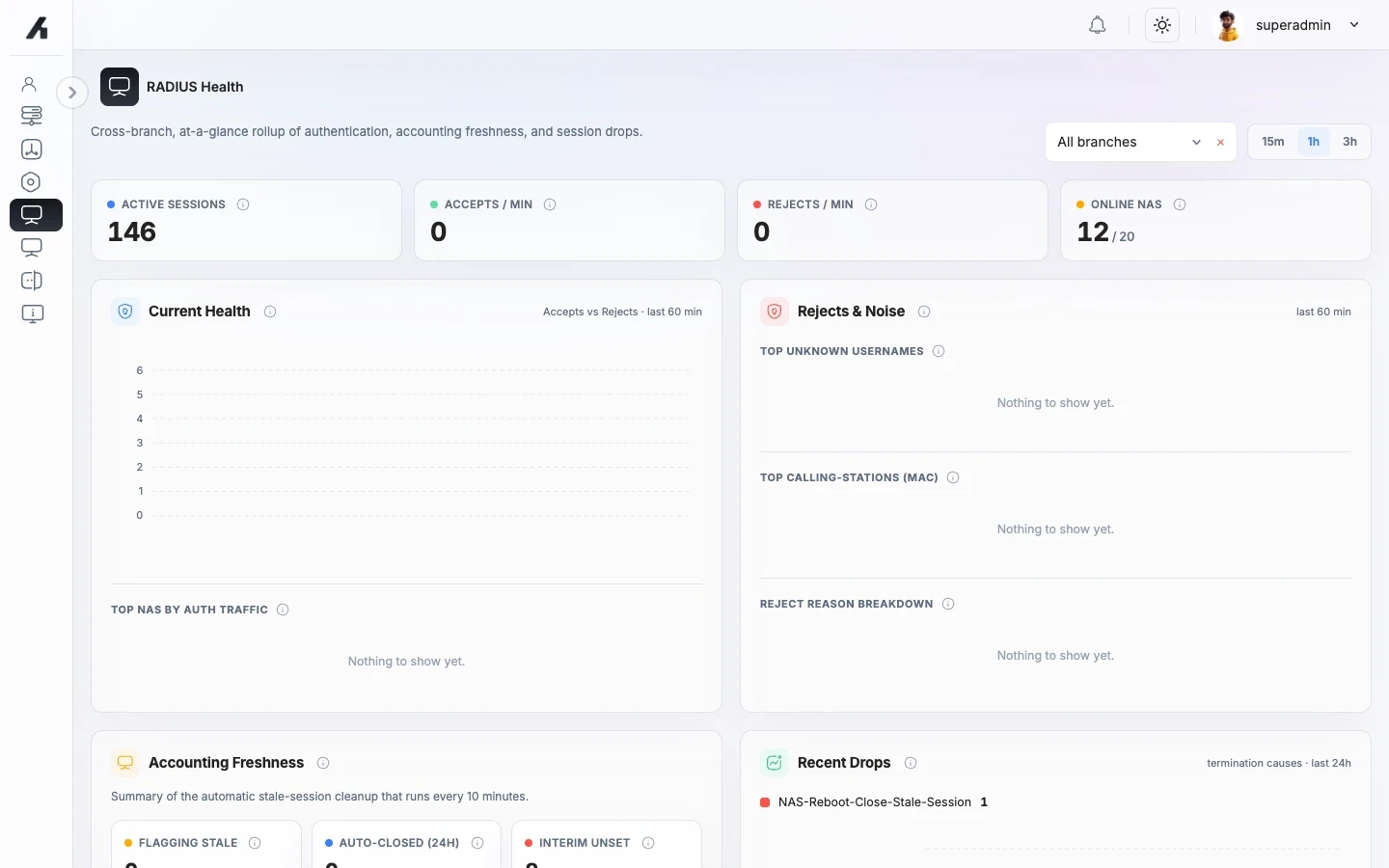
Toolbar. Filter to All branches or a single branch, choose a time window (15m / 1h / 3h), and turn on Live to auto-refresh (or press Refresh manually).
Headline tiles.
| Tile | What it means |
|---|---|
| Active sessions | Customers connected and online right now, across all branches. |
| Accepts / min | Successful logins per minute — healthy when steady. |
| Rejects / min | Failed logins per minute — a sudden jump usually points to a password, device, or configuration problem. |
| Online NAS | Network devices (routers / access points) currently reporting in. |
Panels.
- Current Health — accepts vs rejects over the window, plus the busiest devices by auth traffic.
- Rejects & Noise — why logins are failing: top unknown usernames, the devices (by MAC) generating the most failures, and a reject-reason breakdown.
- Accounting Freshness — a summary of the automatic stale-session cleanup (see Global Settings → Clear Stale Sessions): which routers are flagging stale sessions, how many were auto-closed in the last 24 hours, and which routers have no interim interval configured (so they can't be watched).
- Recent Drops — how and why sessions ended over the last 24 hours (
User-Requestis normal;Lost-Carriermeans the connection dropped), plus a stops-per-hour trend.
Every tile and panel has an info icon with a plain-language explanation — hover it if a metric is unfamiliar.
System Monitoring
Where to find it: Super Admin sidebar → System Monitoring.
System Monitoring embeds an infrastructure dashboard (server, database, and queue metrics) for deeper operational visibility. It is a read-only view for spotting resource pressure or backend issues.
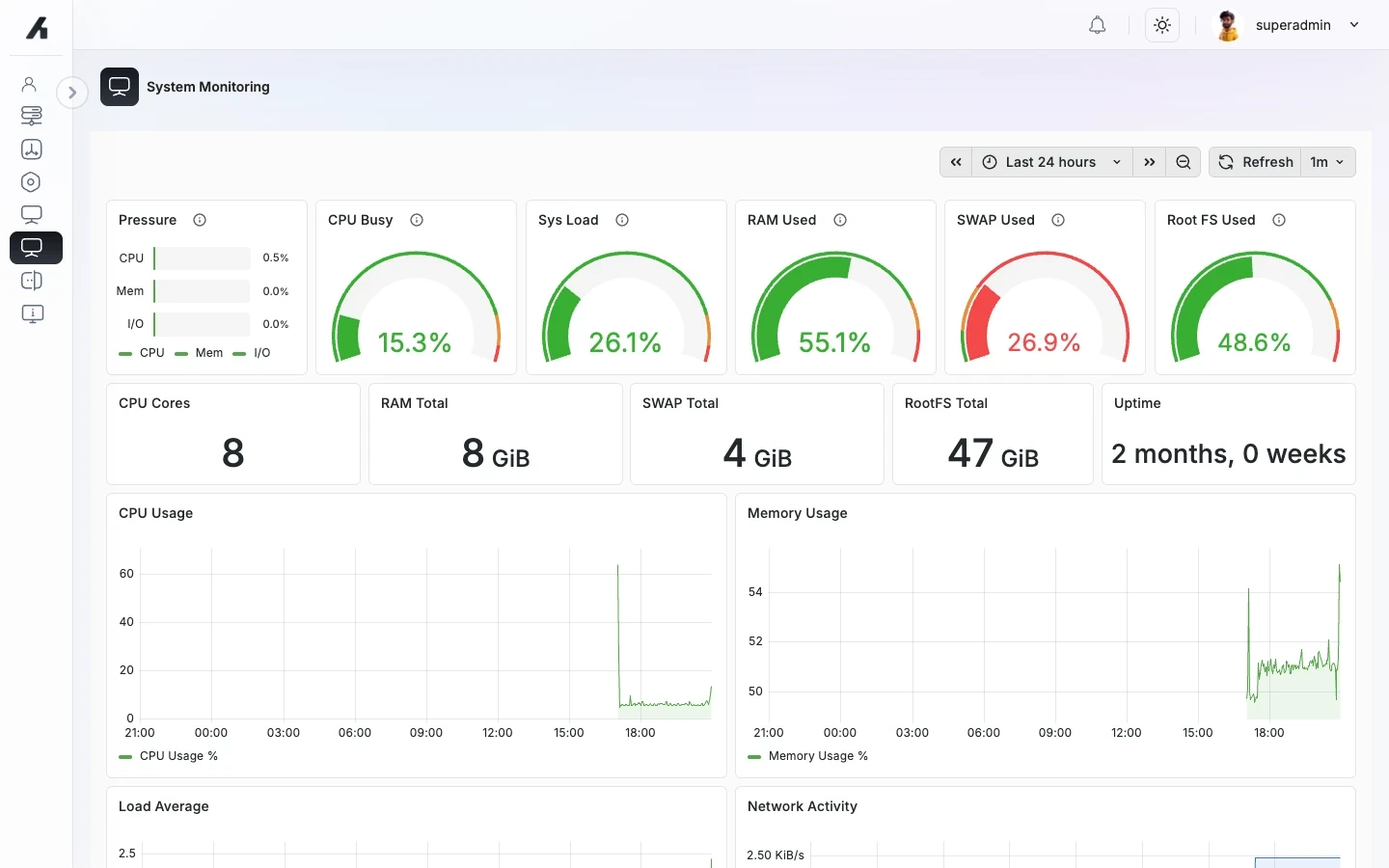
The embedded dashboard is a Grafana view driven by the server's configured Grafana URL. If the URL is empty, AltRadius renders no dashboard or substitute empty-state panel on this page.
System Info (Server Info)
Where to find it: Super Admin sidebar → System → Server Info.
Server Info is a quick reference card of the environment the platform is running on — useful when raising a support request.
| Row | What it shows |
|---|---|
| Server IP/DNS | The server's address. |
| PHP | The PHP runtime version. |
| PostgreSQL | The database version. |
| Date Time | The server's current date and time. |
| PostgreSQL Timezone | The database timezone. |
| Storage | Disk usage. |
| Memory | Memory usage. |
| CPU | CPU information. |
Placeholders (global UI text)
Where to find it: Super Admin sidebar → Placeholders.
The Placeholders editor lets you change the wording of the interface itself — the labels, buttons, headings, and messages users see. Text is organised into sections (a list on the left); pick a section and its keys load in a tree on the right, where you can edit each value in place.
How to use it:
- Choose a section from the left-hand list.
- Use the Filter box to narrow to the key you want.
- Edit the value(s). The editor tracks only what you changed.
- Click Save to publish your edits.
Each piece of text exists per language, so you edit the values for the language you are working in. Changing wording here is the supported way to re-label the product without touching code — for example, renaming a status or adjusting a message to match local terminology.
Because these strings are cached, a change can take a moment to appear everywhere, and users may need to refresh their browser to pick it up.
License
Where to find it: Super Admin sidebar → License.
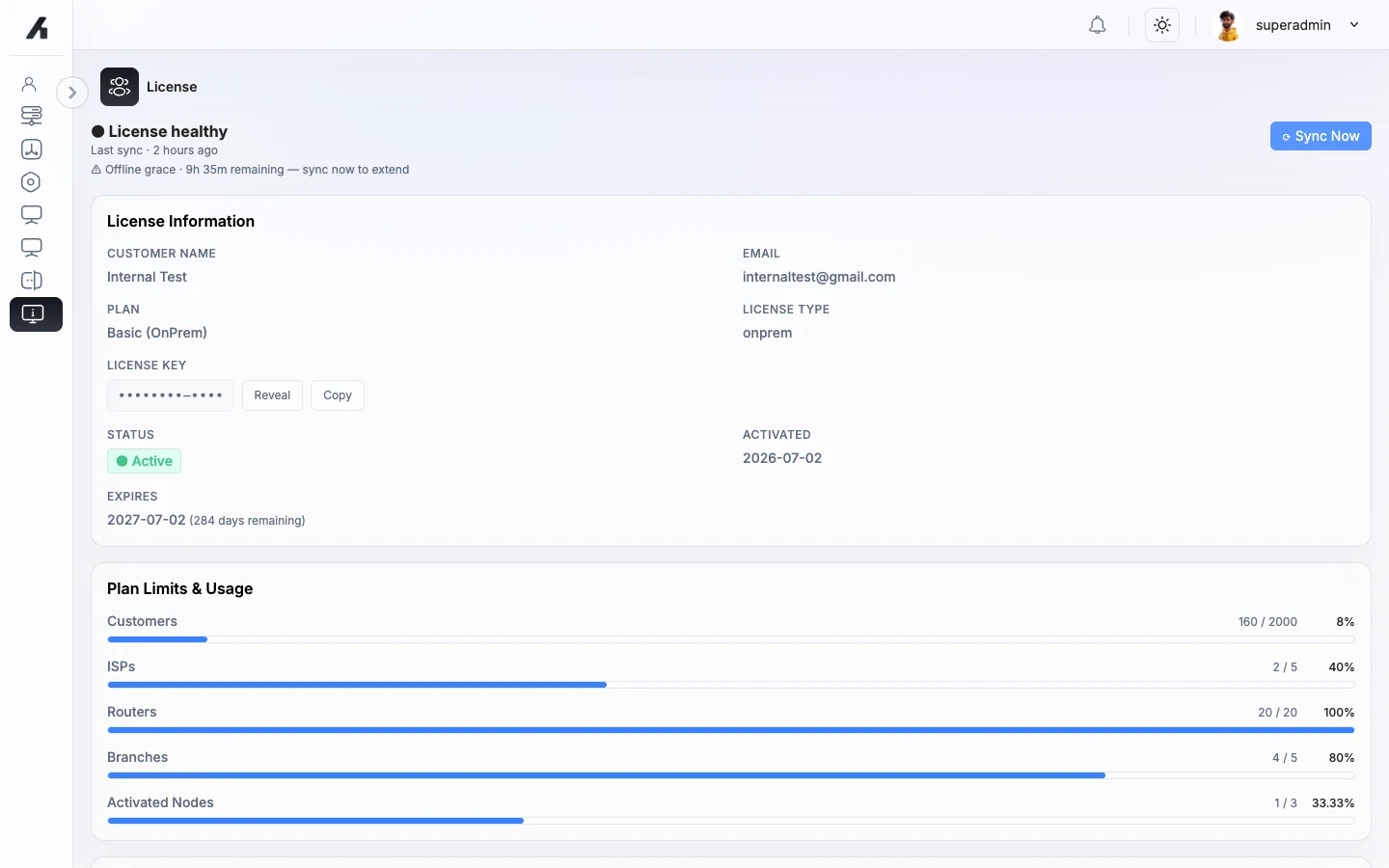
The License page shows your subscription's health, its details, and how your usage compares to the plan's limits. It is operator-facing: it tells you what state the licence is in and what to do, not how licensing works internally.
License Health
A coloured banner shows the current state and when the licence last synced:
| State | Meaning | What to do |
|---|---|---|
| License healthy | Everything is active and syncing normally. | Nothing. |
| Subscription in read-only grace | The licence hasn't confirmed recently; the system is in a temporary read-only grace period. | Click Sync Now to refresh and restore full access. A grace-remaining line tells you how long you have. |
| License locked (or missing / corrupted / clock anomaly) | The licence could not be validated and the system is restricted. | Click Sync Now first. If that doesn't clear it, use Recover node (below). |
Sync Now. Manually re-checks the licence with the licensing service and updates the "last sync" time. Use it whenever the banner is not green, or after resolving a connectivity problem. It is rate-limited, so repeated clicks are throttled.
Recover node. Appears only when the state is locked, missing, or corrupted — never on a healthy or read-only licence. It backs up and clears this installation's local licence cache, then re-syncs as a fresh node. It only succeeds if the licence operator has already deactivated the old node and allowed a replacement, so use it only when instructed during a support recovery (for example after migrating the server to new hardware). You confirm before it runs.
License Information
Customer name and email, the plan name, licence type, and the licence key (masked, with Reveal and Copy), plus the licence Status, Activated date, and Expires date with days remaining.
Plan Limits & Usage
Progress bars showing your current usage against your plan limits for Customers, ISPs, Routers, Branches, and Activated Nodes. A limit shown as ∞ means unlimited.
Add-ons
Any active add-ons on your subscription, or an empty state when there are none.
Emergency controls
Emergency controls are kill switches for pausing customer-facing services safely during an incident. Every flip is recorded in the Super Admin actions audit log, and changes take effect immediately — no Save needed.
The Customer Portal Emergency Controls card (with the two global switches) lives on the Global Settings page. The per-branch portal switch lives on the Branches list (and on each branch's Edit page).
Global customer-portal kill switch
Disables the customer portal for every branch at once — use it during a platform-wide outage.
- Disable opens a modal where you choose a Reason (Scheduled maintenance, Security incident, Compliance review, Billing issue, or Other) and can add an optional free-text detail for the audit log. While active, no customer on any branch can sign in to the portal, and active sessions are signed out on their next portal action.
- Re-enable asks you to confirm, then lets customers sign in again on the next page load.
Per-branch customer-portal kill switch
Disables the customer portal for one branch only — use it for tenant-level abuse review, maintenance, or a billing issue on a single branch. Flip it from the shield icon on the branch's row in the Branches list, or from the branch's Edit page.
| Shield state | Meaning | Clicking it |
|---|---|---|
| Enabled for this branch | Customers in this branch can sign in. | Opens the reason modal to disable it. |
| Disabled for this branch | Customers in this branch cannot sign in. | Re-enables it (after confirmation). |
| Shadowed by global | The global kill switch is on, so the whole portal is dark regardless of this branch's setting. | Clear the global switch first to manage this branch individually. |
A global switch always overrides the per-branch setting.
Global expiry-reminder kill switch
On the same card as the global portal switch, this pauses all outbound expiry reminders across every branch — use it during a mail-provider incident or a compliance review.
- Disable captures a reason (same list as above). While active, scheduled, manual, and backfill reminder sends are all blocked. (Operator test-sends are unaffected.)
- Re-enable confirms, then resumes sending on the next scheduler run.
These switches pause presentation and outbound messaging only — no customer data, invoice, or balance is changed. They are meant to be flipped back on once the incident is resolved.